FAQ: Web Browser
Which Web Browsers Are Supported?
abcdesktop.io uses modern HTML5 WebSocket and clipboard APIs. The following minimum browser versions are known to be compatible:
| Browser | Minimum Version |
|---|---|
| Google Chrome | 49 |
| Mozilla Firefox | 58 |
| Apple Safari | 11 |
| Opera | 36 |
| Microsoft Edge (Chromium-based) | All versions |
How Do I Use Copy & Paste?
For full bidirectional clipboard synchronization between your local device and the abcdesktop.io session, use Chrome, Chromium, or Microsoft Edge (Chromium). These browsers expose the Clipboard API natively without additional configuration.
Firefox is also supported with a dedicated abcdesktop.io extension.
| Browser | Clipboard Sync Support |
|---|---|
| Chrome | Yes — native support |
| Chromium | Yes — native support |
| Microsoft Edge (Chromium) | Yes — native support |
| Firefox | Yes — requires the abcdesktop.io Firefox extension |
| Safari | No — clipboard access is blocked by the platform or user agent policy |
Important: Clipboard API read/write operations require the
https://protocol. Clipboard sync will not function over plain HTTP.
How Do I Change the Default Language?
abcdesktop.io reads the web browser's Accept-Language HTTP header to determine the user interface language for the desktop session and launched applications. The default installed languages are English (en_US), French (fr_FR), German, and Romanian. If you require additional language support, rebuild the container image with the required locale packages.
To change the language:
- Change your browser's default language in the browser settings.
- Reload the abcdesktop.io page. The session language updates dynamically — you do not need to log out.
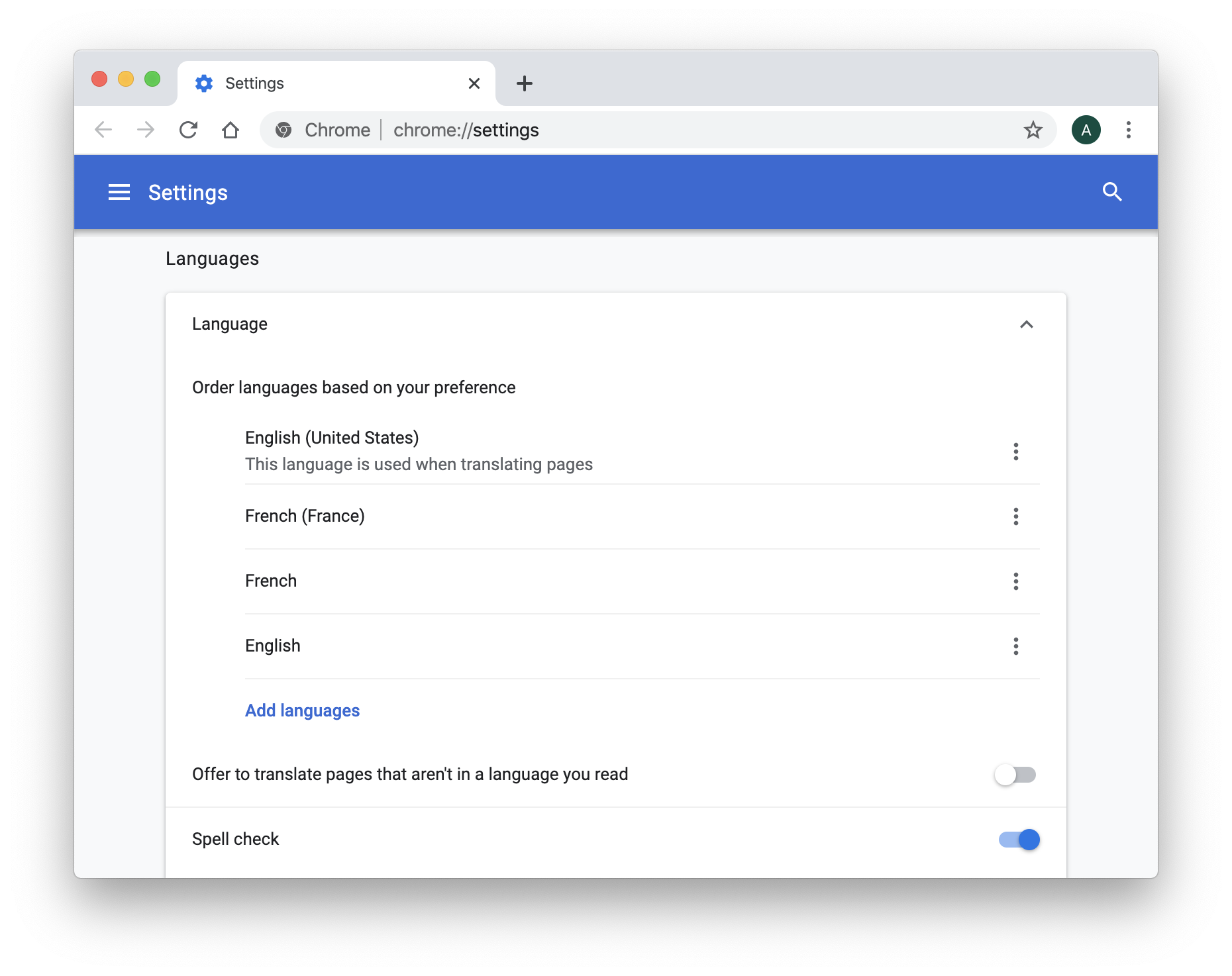
Example: Setting the language to English (en_US)
Set the browser language to en_US:
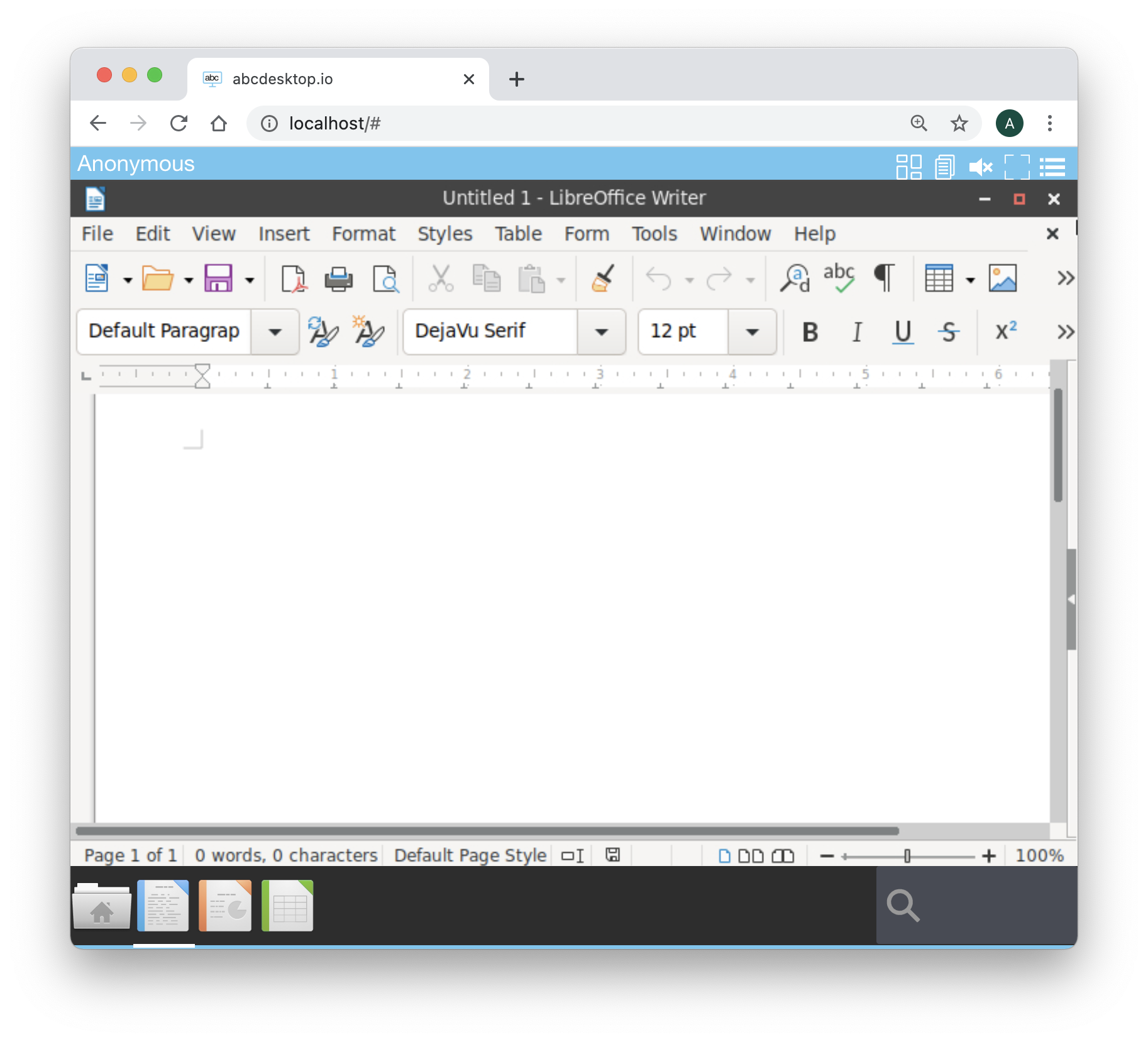
Launch LibreOffice Writer — the UI appears in English:
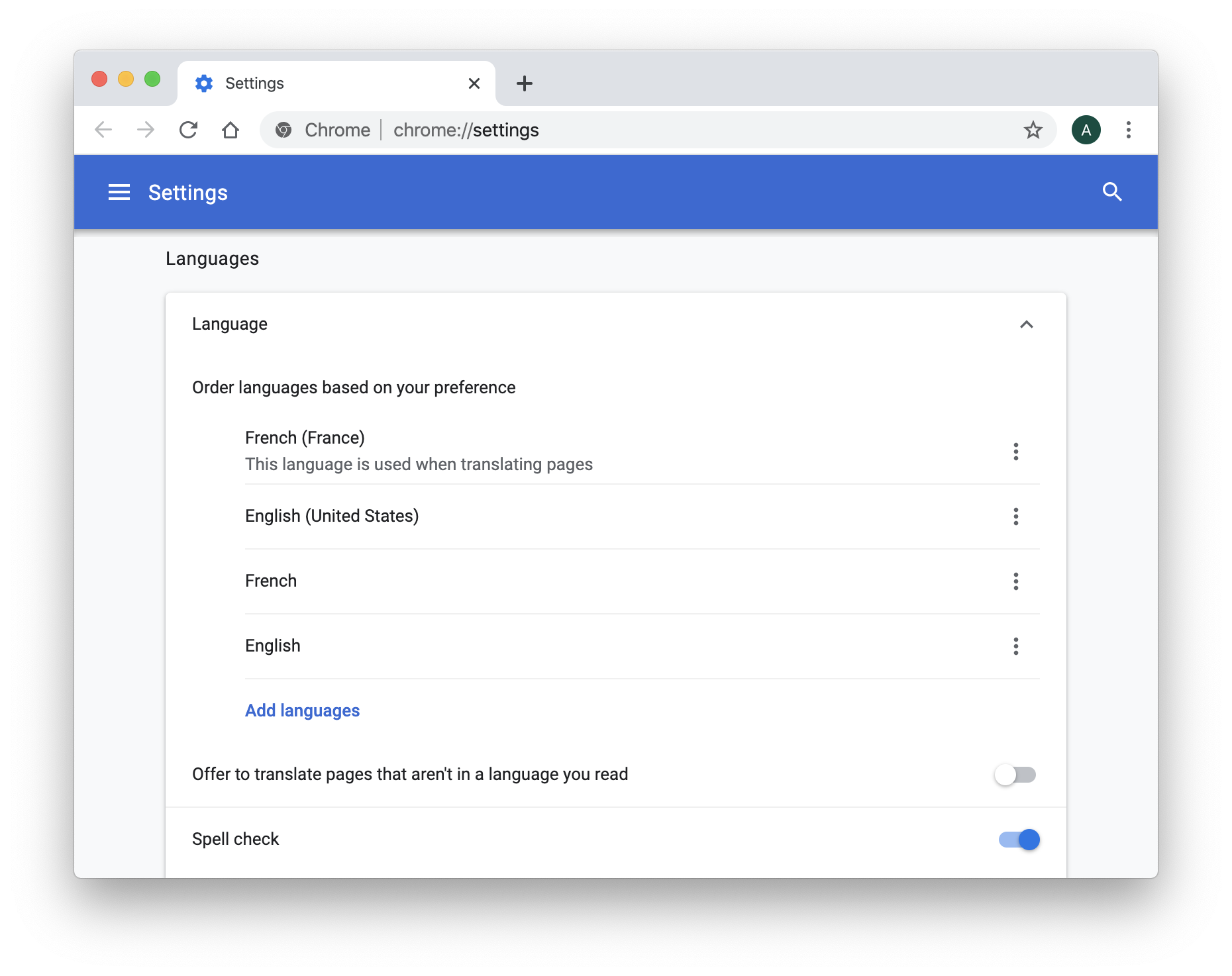
Example: Setting the language to French (fr_FR)
Set the browser language to fr_FR:
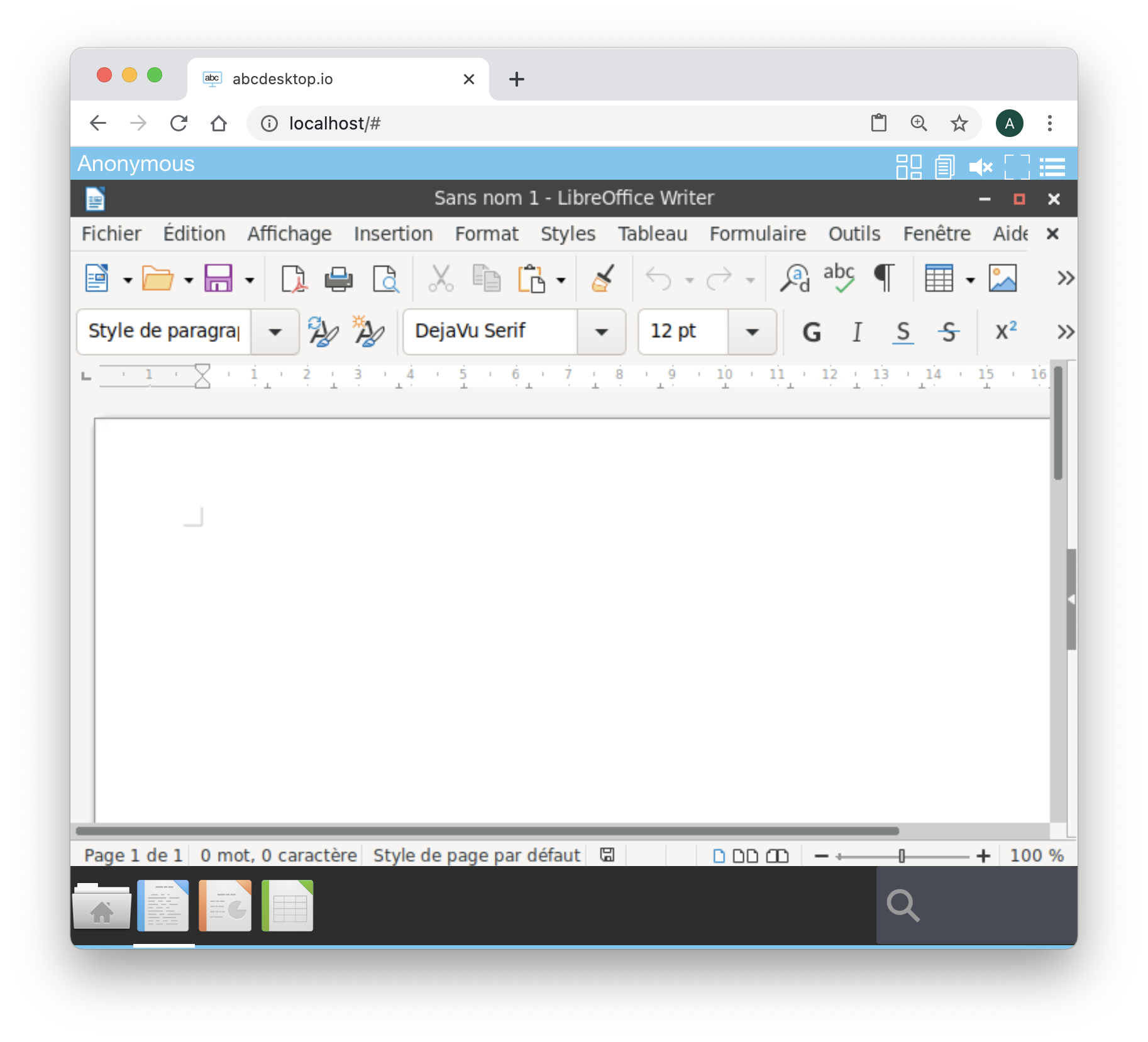
Launch LibreOffice Writer — the UI appears in French: