Installing Applications with the Default Script
Quick Application Installation
The quick application installation script runs on Linux and macOS operating systems.
Download and execute the pullapps-4.4.sh script to install the default set of application images:
curl -sL https://raw.githubusercontent.com/abcdesktopio/conf/main/kubernetes/pullapps-4.4.sh | bash
The following video demonstrates the application installation process on a freshly provisioned Kubernetes cluster:
Connecting to abcdesktop.io
After the script completes, the pyos API server receives new image registration events. Refresh the browser tab to display the newly installed applications.
Navigate to your abcdesktop.io instance:
http://localhost:30443/
The installed applications are now available in the desktop environment.
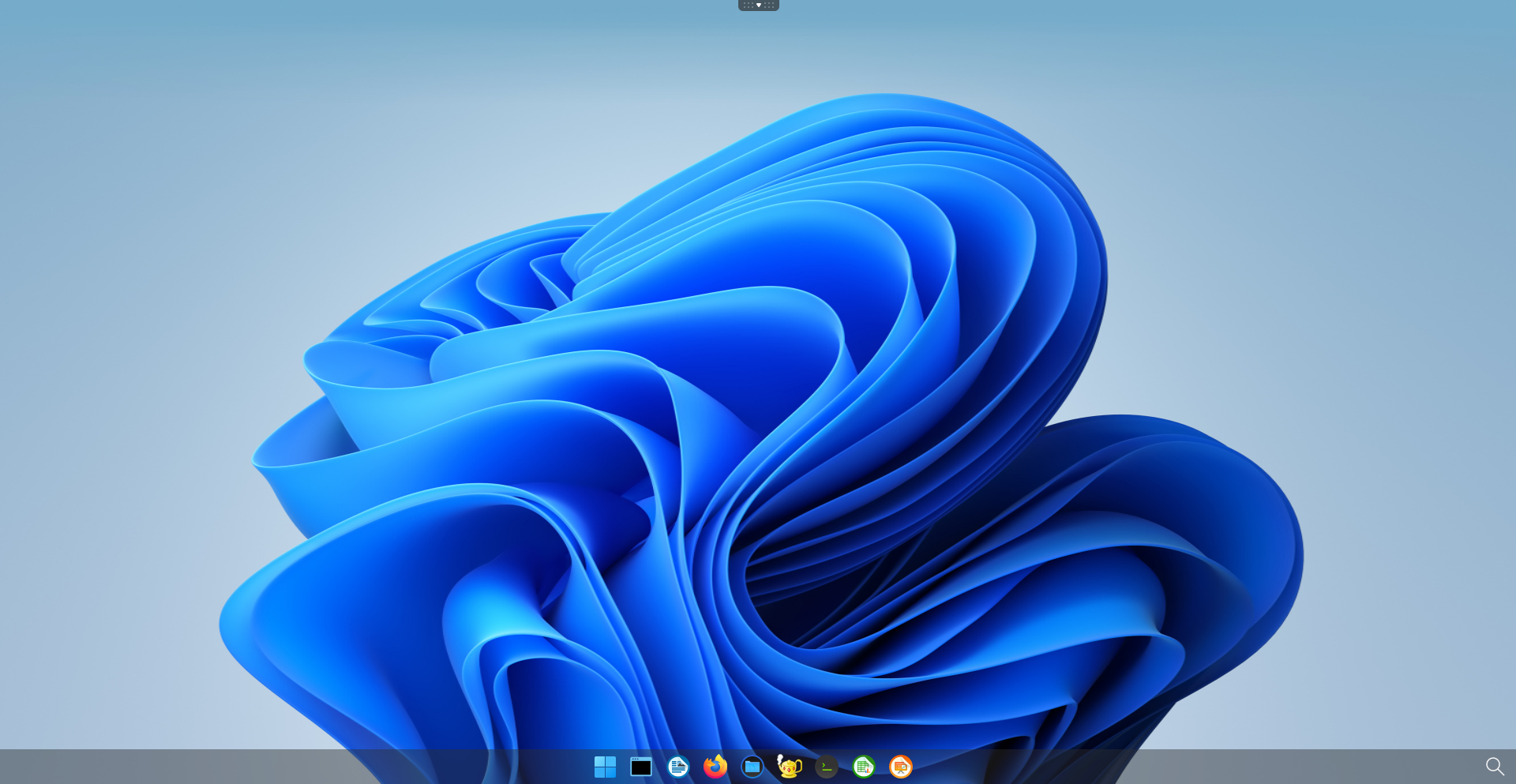
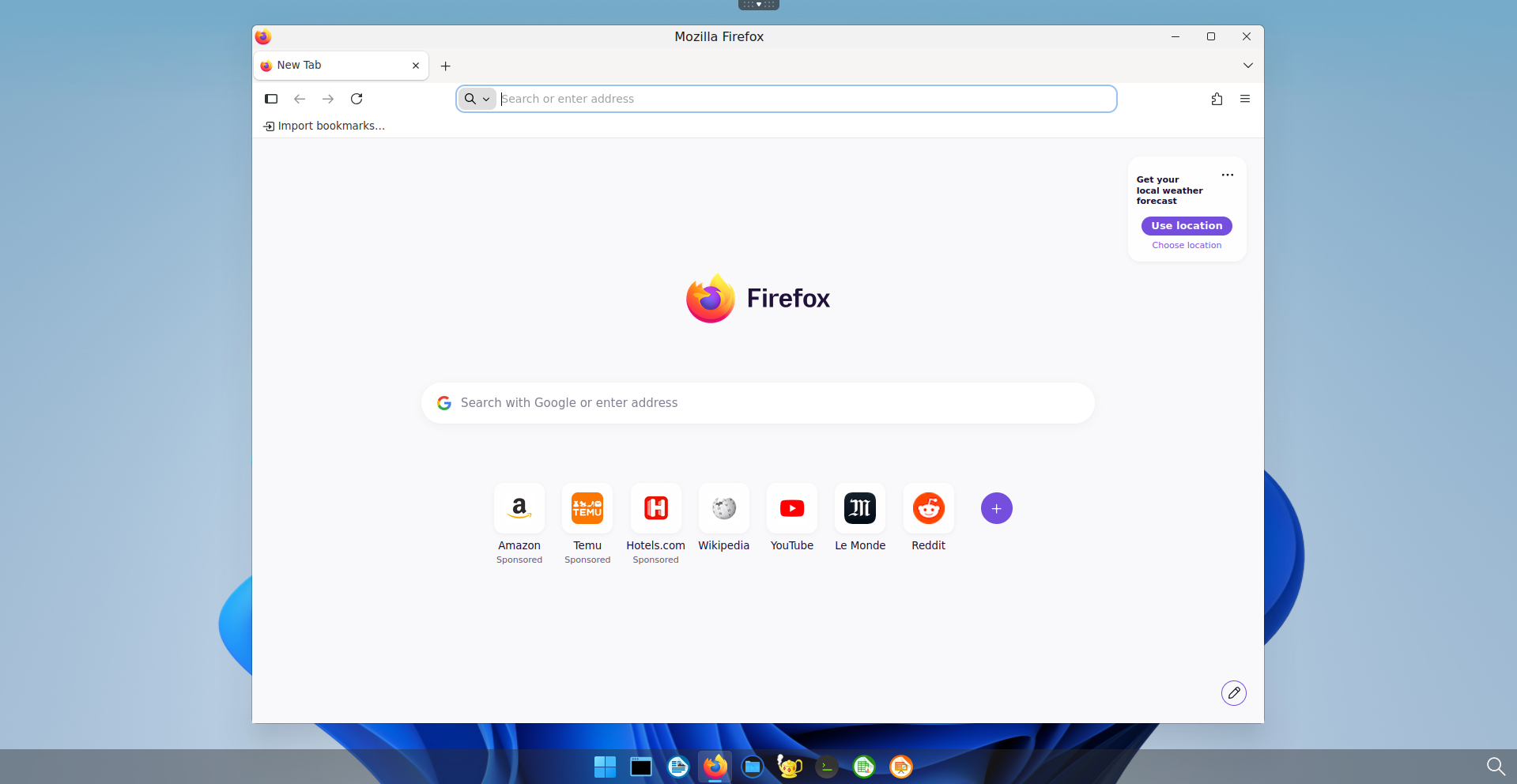
You can now launch installed applications. For example, launching Firefox demonstrates Remote Browser Isolation (RBI): Firefox runs entirely inside an isolated container on the Kubernetes cluster, and only rendered pixels are streamed to the client browser.
The following video demonstrates application management using the admin console:
Quick Application Installation
The quick application installation script runs on Windows operating systems.
Download and execute the pullapps-4.4.ps1 PowerShell script:
curl -sL https://raw.githubusercontent.com/abcdesktopio/conf/main/kubernetes/pullapps-4.4.ps1 | bash
The following video demonstrates the application installation process on a freshly provisioned Kubernetes cluster:
Connecting to abcdesktop.io
After the script completes, refresh the browser tab to display the newly installed applications.
Navigate to your abcdesktop.io instance:
http://localhost:30443/
The installed applications are now available in the desktop environment.
You can now launch installed applications. For example, launching Firefox demonstrates Remote Browser Isolation (RBI): Firefox runs entirely inside an isolated container on the Kubernetes cluster, and only rendered pixels are streamed to the client browser.
The following video demonstrates application management using the admin console: