Retain user's home directory using NFS storage
Prerequisites
- a Kubernetes cluster with abcdesktop installed
- helm CLI
To make the user's home directory persistent using NFS, you will need to: - Set up your own NFS server - Bind user's home directories to the NFS server using PersistentVolume (PV) and PersistentVolumeClaim (PVC)
Set up an NFS server
Server install
On a dedicated machine, install the following packages:
apt-get install nfs-kernel-server nfs-common
Server configuration
Once installed, create the directory that you will export:
mkdir /data/abcdesktop_nfs
chown -R nobody:nogroup /data/abcdesktop_nfs
Edit /etc/exports
vim /etc/exports
Add the following line:
/data/abcdesktop_nfs 192.168.X.X/24(rw,sync,no_subtree_check,no_root_squash) # make sure to change 192.168.X.X/24 by your own cluster subnet
Finally, apply the configuration.
exportfs -ra
systemctl restart nfs-kernel-server
Verify that the configuration has been applied correctly:
exportfs -v
Note
You should see the line you just added to the configuration file.
Bind user's homedir to nfs server
Install nfs-subdir-external-provisioner
Note
For more information about nfs-subdir-external-provisioner, refer to this page.
First, install a provisioner in your cluster. This example uses nfs-subdir-external-provisioner for its dynamic subdirectory creation capability.
Create a nfs-subdir-values.yaml file and paste the following lines to configure the storage class.
nfs:
  server: 192.168.X.X   # change it to your server ip
  path: /data/abcdesktop_nfs

replicaCount: 1

storageClass:
  name: nfs-user-storage-abcdesktop
  defaultClass: false
  reclaimPolicy: Retain
  volumeBindingMode: Immediate
  archiveOnDelete: true
  onDelete: retain
  pathPattern: "${.PVC.annotations.nfs.io/username}" # Important for dynamic subdir creation

rbac:
  create: true

serviceAccount:
  create: true
  name: nfs-subdir-external-provisioner
Then install nfs-subdir-external-provisioner by running the following command:
helm install nfs-subdir-external-provisioner \
  nfs-subdir-external-provisioner/nfs-subdir-external-provisioner \
  --namespace nfs-provisioner \
  --create-namespace \
  --values nfs-subdur-values.yaml
Info
It is important to set the reclaim policy to Retain to preserve the PV after PVC deletion.
You can verify that the storage class has been created by running the following command:
kubectl get sc
NAME                          PROVISIONER                                     RECLAIMPOLICY   VOLUMEBINDINGMODE   ALLOWVOLUMEEXPANSION   AGE
nfs-user-storage-abcdesktop   cluster.local/nfs-subdir-external-provisioner   Retain          Immediate           true                   40h
Update od.config
Now, you need to configure pyos to bind user home directories to the exported NFS folder by updating the od.config file.
First, change the desktop.homedirectorytype variable from None to persistentVolumeClaim.
desktop.homedirectorytype: 'persistentVolumeClaim'
Then add the following lines to define the PersistentVolumeClaim template:
desktop.persistentvolumeclaim: {
   'metadata': {
      'name': '{{ provider }}-{{ userid }}',
      'annotations': {
          'nfs.io/username': '{{ userid }}'
      }
   },
   'spec': {
    'storageClassName': 'nfs-user-storage-abcdesktop',
    'accessModes': [ 'ReadWriteMany' ],
    'resources': {
       'requests': {
          'storage': '10Gi' } } } }
Note
There is no need to specify a PersistentVolume template for pyos, as nfs-subdir-external-provisioner handles it automatically.
Then, configure pyos to delete the PersistentVolumeClaim upon pod deletion while retaining the PersistentVolume, consistent with the Retain reclaim policy defined for the storage class.
desktop.removepersistentvolume: False
desktop.removepersistentvolumeclaim: True
Finally, update the od.config ConfigMap and restart pyos to apply the changes.
kubectl create -n abcdesktop configmap abcdesktop-config --from-file=od.config -o yaml --dry-run=client | kubectl replace -n abcdesktop -f -
kubectl rollout restart deploy pyos-od -n abcdesktop
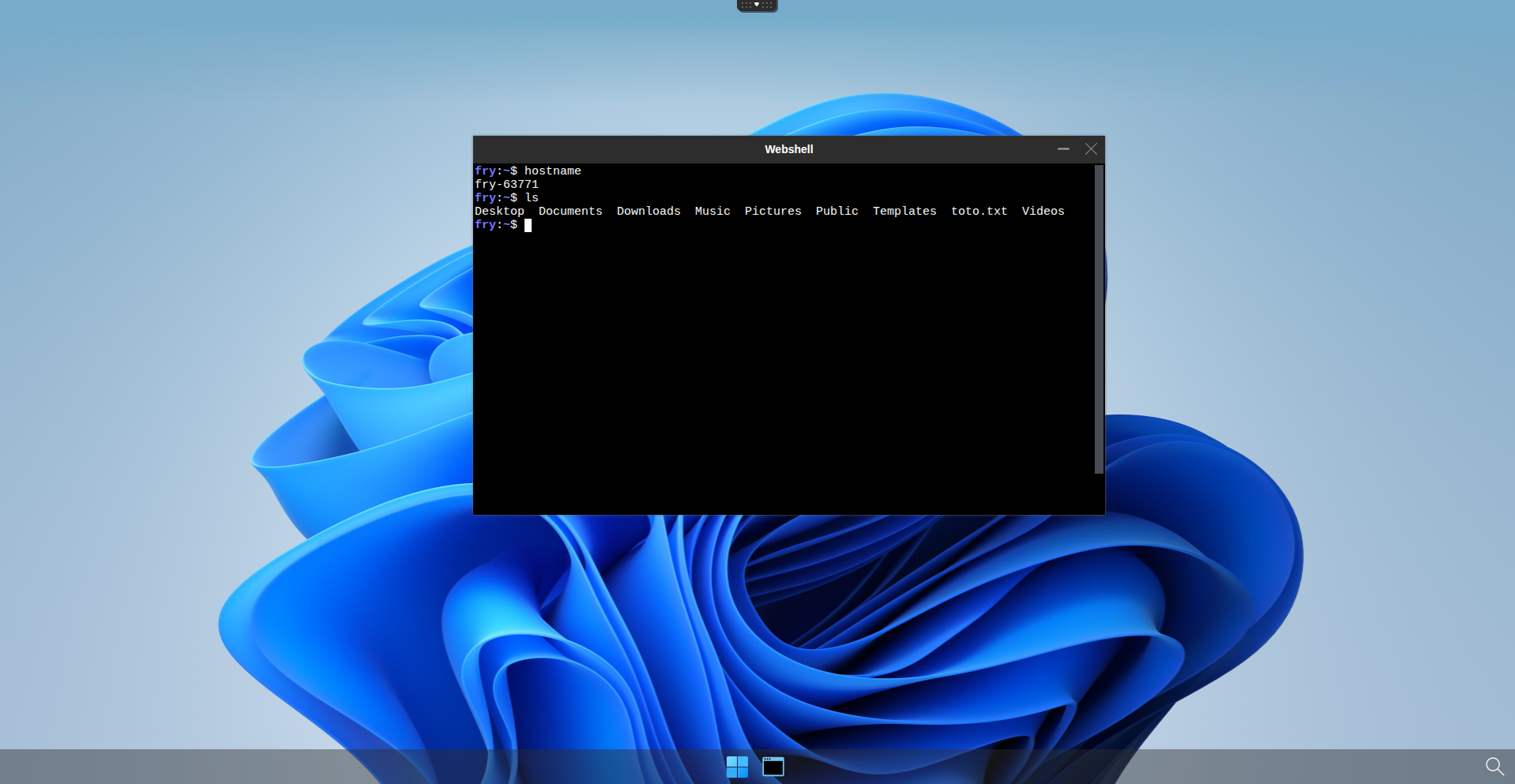
Check if user's homedir is persistent
You can now connect to abcdesktop and log in as a user.
Once connected, run the following command to verify that the user's home directory is correctly configured:
kubectl describe pod <YOUR-POD-NAME> -n abcdesktop
You should see something like the following in the volumes section:
Volumes:
  home:
    Type:       PersistentVolumeClaim (a reference to a PersistentVolumeClaim in the same namespace)
    ClaimName:  planet-fry
    ReadOnly:   false
You can also verify the PV and PVC within your cluster:
kubectl get pv,pvc -n abcdesktop

NAME                                                        CAPACITY   ACCESS MODES   RECLAIM POLICY   STATUS        CLAIM                   STORAGECLASS                   VOLUMEATTRIBUTESCLASS   REASON   AGE
persistentvolume/pvc-4b522afd-bf6e-411e-85c3-2a39e1b2c58f   10Gi       RWX            Retain           Bound         abcdesktop/planet-fry   nfs-user-storage-abcdesktop    <unset>                          26m

NAME                               STATUS   VOLUME                                     CAPACITY   ACCESS MODES   STORAGECLASS                   VOLUMEATTRIBUTESCLASS   AGE
persistentvolumeclaim/planet-fry   Bound    pvc-8f802cbc-873f-46ab-9d7a-fe266da42387   10Gi       RWX            nfs-user-storage-abcdesktop    <unset>                 22m
Now create a file in the user's home directory:
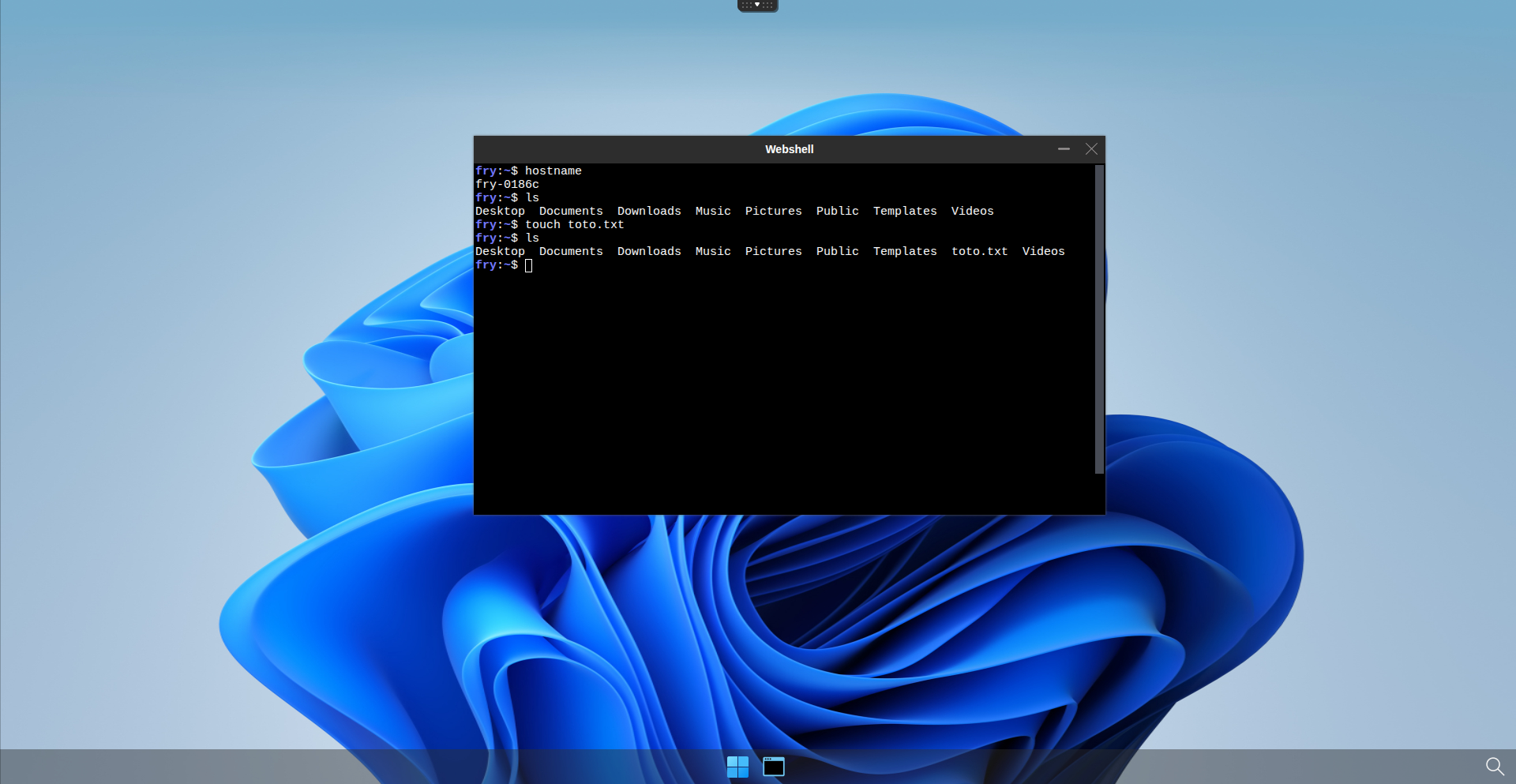
You can also verify that the user's home directory is present on your NFS server and that a subdirectory has been created by nfs-subdir-external-provisioner.
root@nfs-server_abcdesktop:/data/abcdesktop_nfs# ls
drwxr-x--- 15 2042 12042 4096 Mar 18 09:11 fry

root@nfs-server_abcdesktop:/data/abcdesktop_nfs# ls -l fry/
drwxr-x--- 2 2042 12042 4096 Mar 17 15:09 Desktop
drwxr-x--- 2 2042 12042 4096 Mar 17 15:09 Documents
drwxr-x--- 2 2042 12042 4096 Mar 17 15:09 Downloads
drwxr-x--- 2 2042 12042 4096 Mar 17 15:09 Music
drwxr-x--- 2 2042 12042 4096 Mar 17 15:09 Pictures
drwxr-x--- 2 2042 12042 4096 Mar 17 15:09 Public
drwxr-x--- 2 2042 12042 4096 Mar 17 15:09 Templates
-rw-r----- 1 2042 12042    0 Mar 18 09:11 toto.txt
drwxr-x--- 2 2042 12042 4096 Mar 17 15:09 Videos
Then log off to destroy the pod and allow it to be recreated. Once reconnected on a new pod with the same user, verify that the file you previously created is still present.