Publish your website as a public secured service
Requirements
- Read the previous chapter Deploy abcdesktop on GCP with Kubernetes
- a GCP account
- your own domain hosted on GCP
gcloudcommand line interface gcloud clikubectlcommand line
For more information
- Read the Google Cloud chapter install-gke-ingress-controller
Overview
In this chapter, we will use a GKE ingress controller to expose your abcdesktop service with a public IP address, configure the DNS zone file to use your own domain name, and enable TLS to secure your service.
Set up the GKE Ingress controller
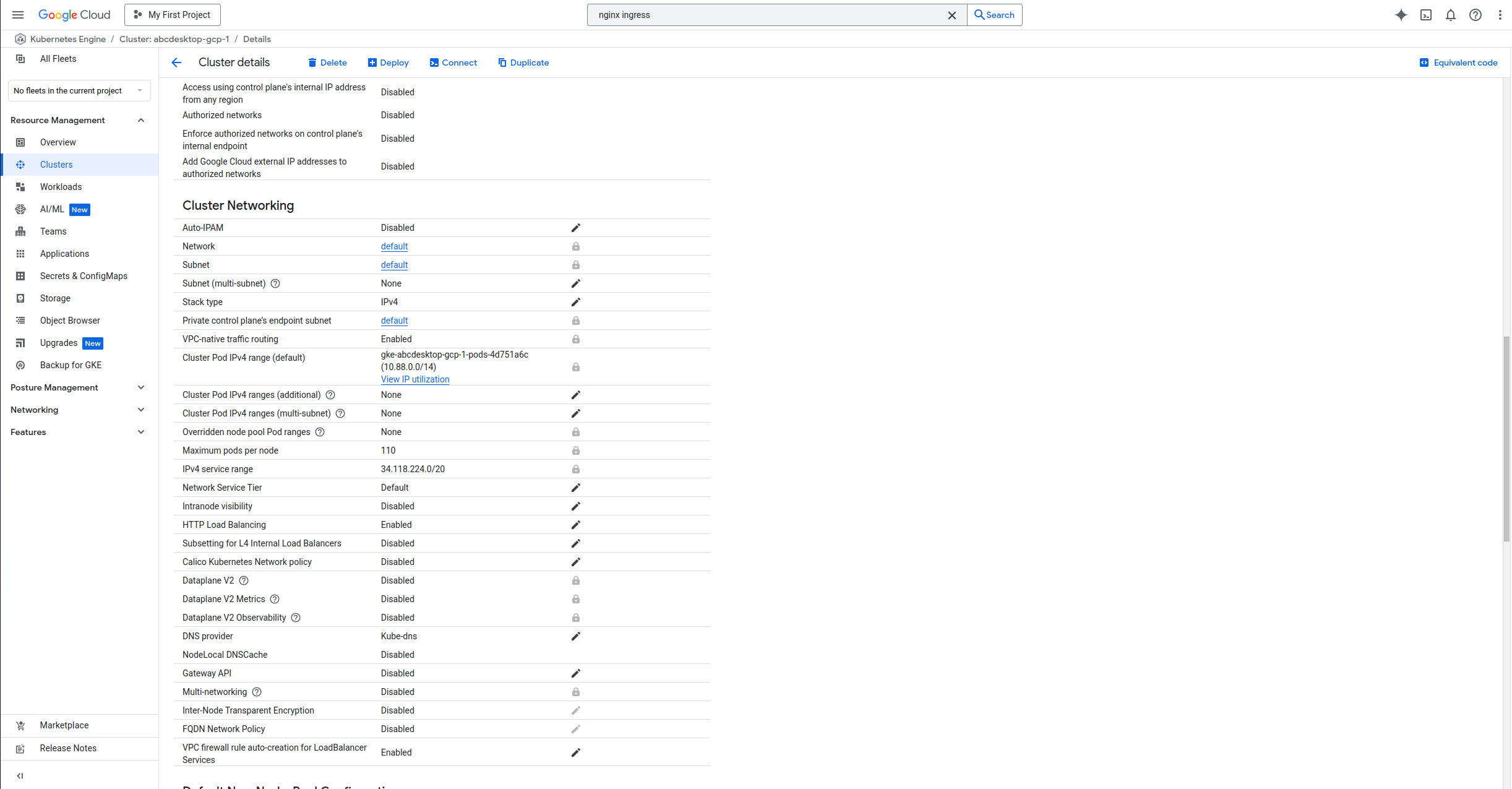
In this example, we will use the GKE built-in ingress controller. Before starting, verify that the HttpLoadBalancing add-on is enabled on your cluster.
Navigate to your cluster page in the GCP console, then select Networking. You should see HttpLoadBalancing listed as enabled. If it is not, enable it and save your changes.
Create an ingress resource for GKE using the abcdesktop service and save it as abcdesktop_host.yaml.
Update this manifest with your own FQDN, replacing hello.ingress.gcp.pepins.net with your own value.
apiVersion: networking.k8s.io/v1
kind: Ingress
metadata:
  name: ingress-abcdesktop
  annotations:
    spec.ingressClassName: "gce"
spec:
  rules:
    - host: hello.ingress.gcp.pepins.net
      http:
        paths:
          - path: /
            pathType: Prefix
            backend:
              service:
                name: http-router
                port:
                  number: 80
The spec.ingressClassName annotation instructs GKE to deploy an external application load balancer.
Apply the Ingress YAML file:
NAMESPACE=abcdesktop
kubectl apply -f abcdesktop_host.yaml -n $NAMESPACE
You should see the following output:
ingress.networking.k8s.io/ingress-abcdesktop created
Verify the ingress resources:
NAMESPACE=abcdesktop
kubectl get ingress -n $NAMESPACE
The output looks similar to the following.
Wait a few seconds while the ADDRESS field is being populated:
NAME                 CLASS    HOSTS                          ADDRESS   PORTS   AGE
ingress-abcdesktop   <none>   hello.ingress.gcp.pepins.net             80      4s
When the ADDRESS field is populated:
NAME                 CLASS    HOSTS                          ADDRESS         PORTS   AGE
ingress-abcdesktop   <none>   hello.ingress.gcp.pepins.net   35.190.86.108   80      3m14s
In the example above, the ingress resource instructs GCE to route each HTTP request using the / prefix for the hello.ingress.gcp.pepins.net host to the http-router backend service running on port 80. In other words, every request to http://hello.ingress.gcp.pepins.net/ is served by the http-router backend service on port 80.
Update your DNS zone file
We will associate your FQDN (Fully Qualified Domain Name) with the load balancer's IP address.
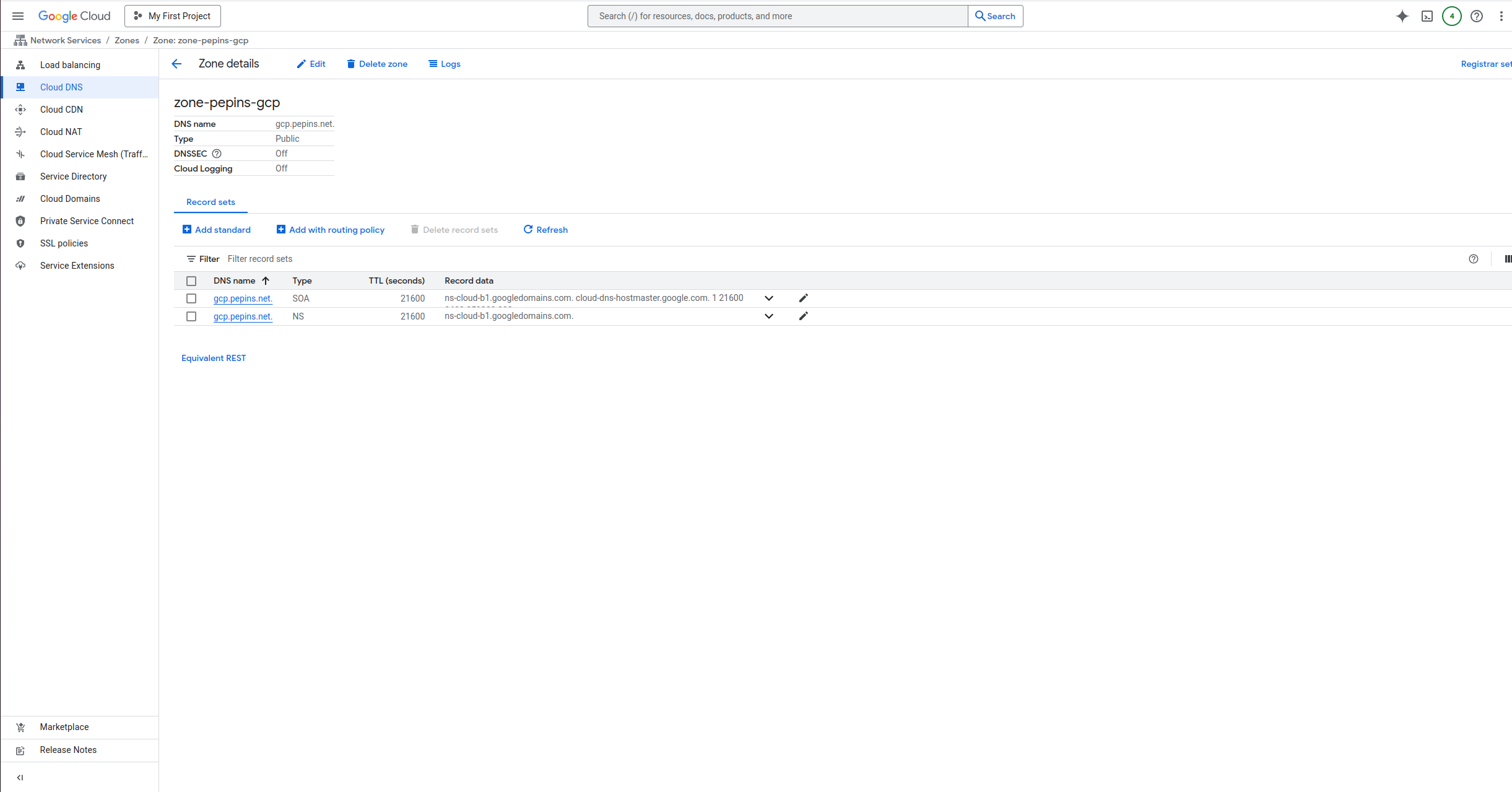
This screenshot shows the GCP network console displaying the Domain configuration. You can also manage your zone file directly through your domain registrar.
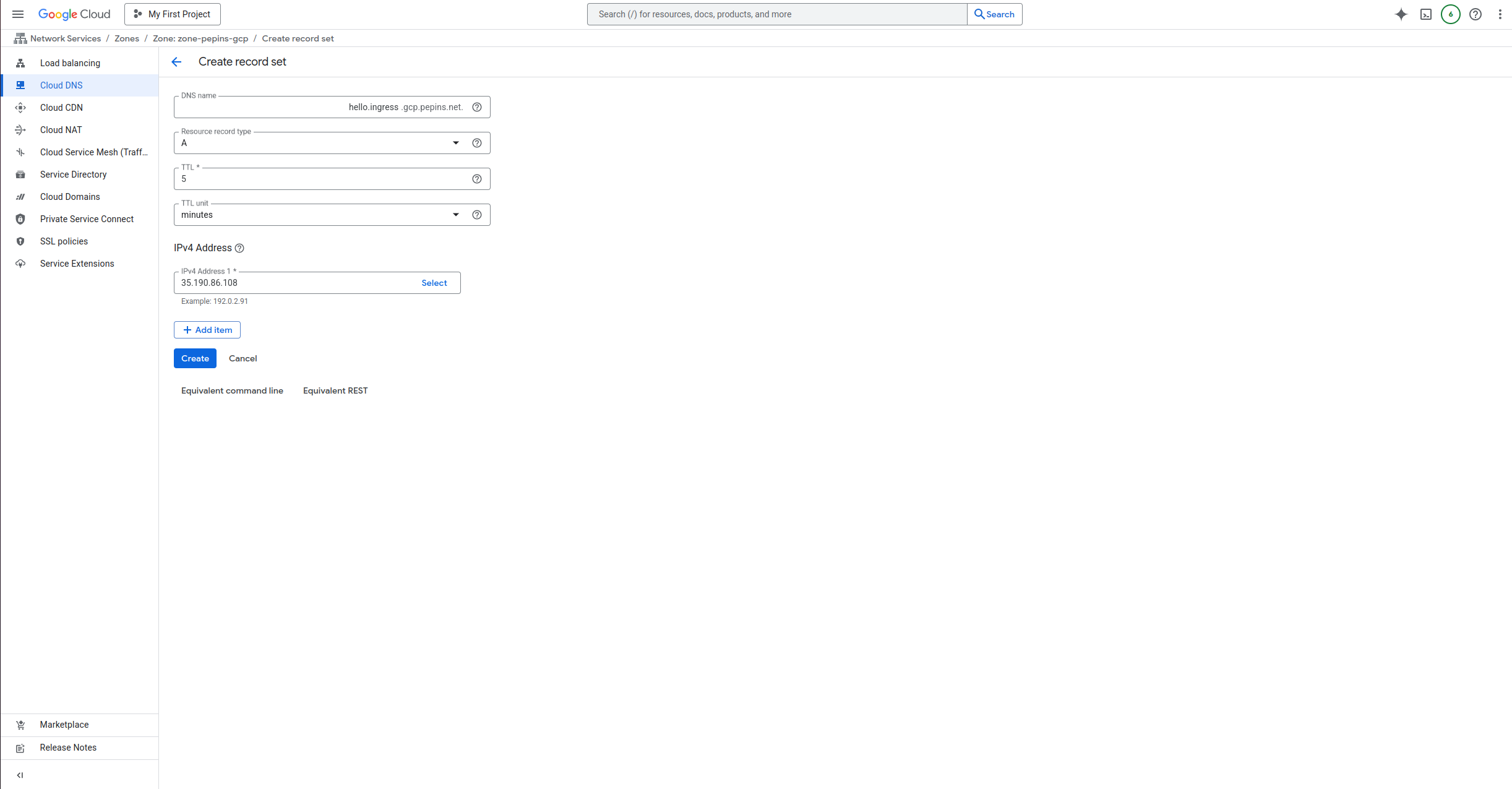
Create new record
In this example, create a new A record named hello.ingress (hello.ingress.gcp.pepins.net) pointing to 35.190.86.108. This IP address is the load balancer IP address.
Click Add Standard to update your zone file with the new record.
The new record should then appear on your domain page.

From your local device, open a web browser.
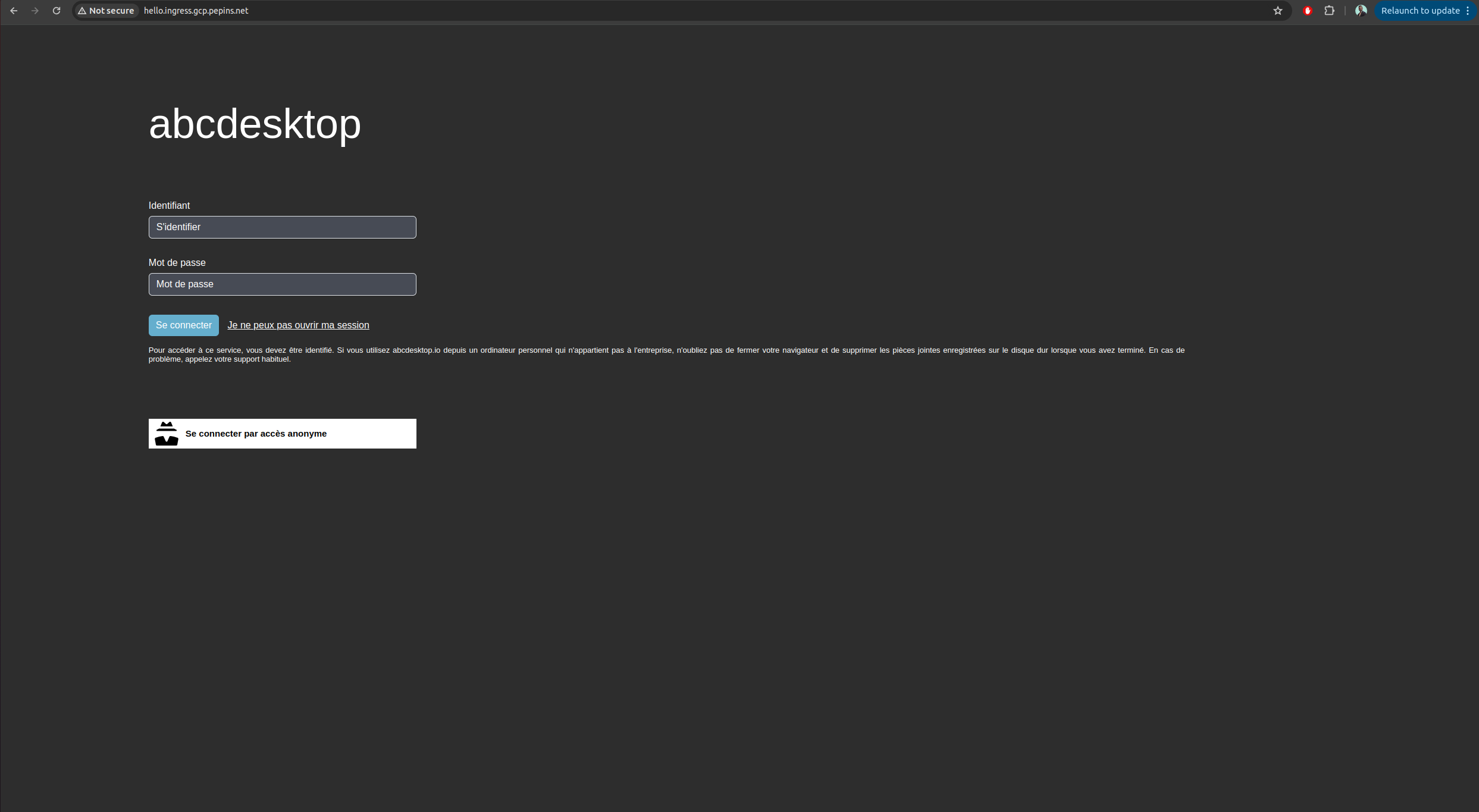
Web browsers block WebSocket connections without a secure protocol. To log in, use the
httpsprotocol.
Your website is marked as Not Secured. We will add an X.509 SSL certificate to secure the service.
Enable HTTPS
Configure Google-managed SSL certificates
To enable HTTPS on the exposed service, we will use Google-managed SSL certificates, which are natively integrated with GCP and work seamlessly with a GKE ingress controller.
First, create a ManagedCertificate object by saving the following manifest to a file named abcdesktop_managed_certificate.yaml.
apiVersion: networking.gke.io/v1
kind: ManagedCertificate
metadata:
  name: abcdesktop-cert
spec:
  domains:
    - hello.ingress.gcp.pepins.net
Then apply it to the cluster:
NAMESPACE=abcdesktop
kubectl apply -f abcdesktop_managed_certificate.yaml -n $NAMESPACE
Next, update the previously created Ingress manifest to reference the managed certificate in the annotations section.
apiVersion: networking.k8s.io/v1
kind: Ingress
metadata:
  name: ingress-abcdesktop
  annotations:
    spec.ingressClassName: "gce"
    networking.gke.io/managed-certificates: "abcdesktop-cert"
spec:
  rules:
    - host: hello.ingress.gcp.pepins.net
      http:
        paths:
          - path: /
            pathType: Prefix
            backend:
              service:
                name: http-router
                port:
                  number: 80
Apply the updated manifest to start certificate provisioning:
NAMESCAPE=abcdesktop
kubectl apply -f abcdesktop_host.yaml -n $NAMESPACE
Verify that provisioning has started:
NAMESCAPE=abcdesktop
kubectl get managedcertificate -n $NAMESPACE
NAME                AGE   STATUS
abcdesktop-cert     30s   Provisioning
After approximately 10 to 15 minutes, the status changes from Provisioning to Active.
NAMESCAPE=abcdesktop
kubectl get managedcertificate  -n $NAMESPACE
NAME                AGE   STATUS
abcdesktop-cert     12m   Active
Reach your website using https protocol
You can now connect to your public abcdesktop website using the https protocol.
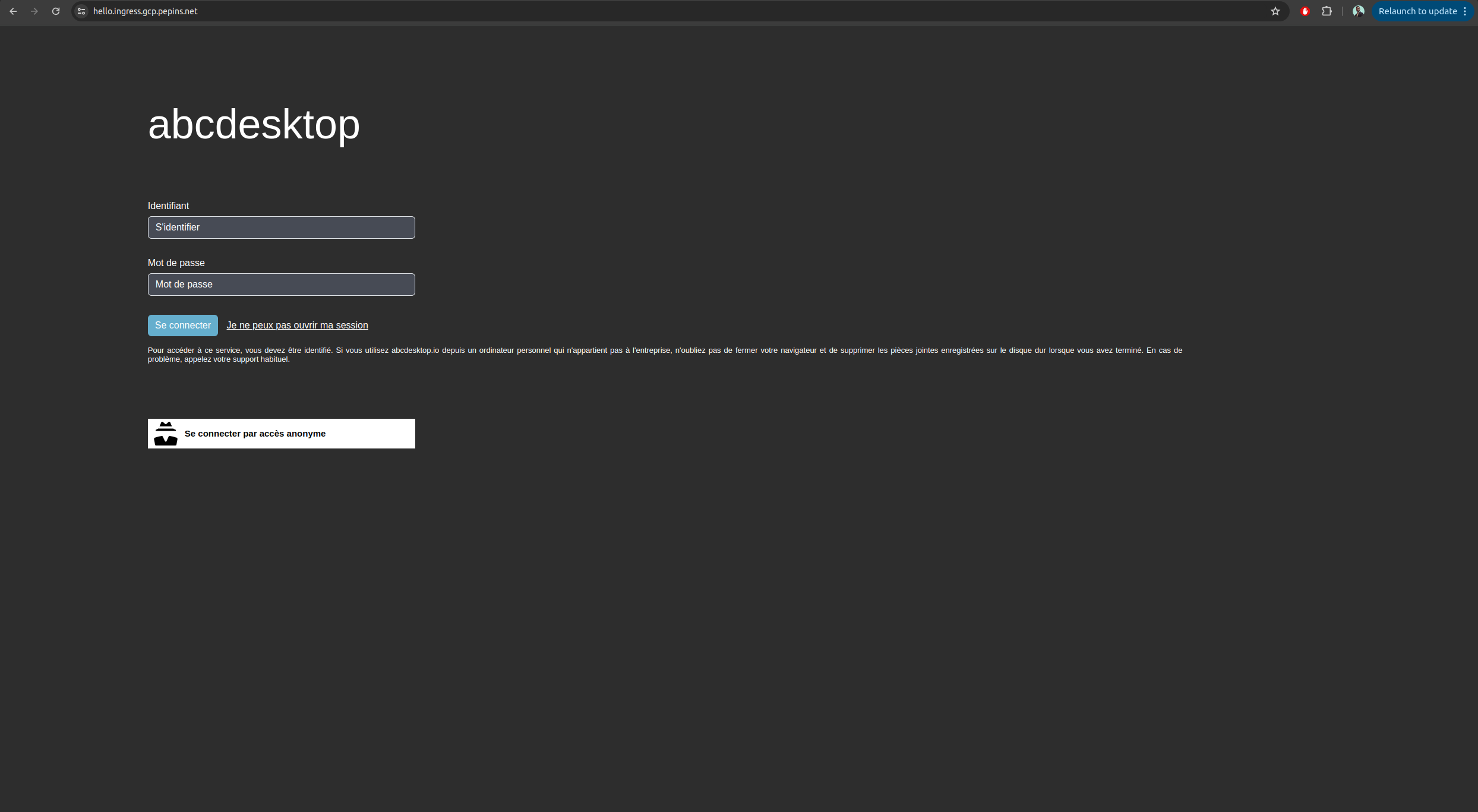
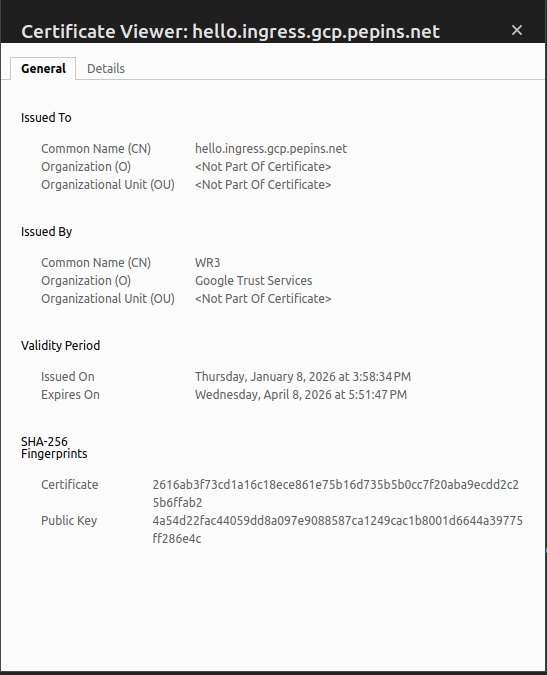
The connection is secured. You can inspect the certificate details.
Increase ingress connection timeout
By default, a GCE-type ingress has a connection timeout of 30 seconds. Since abcdesktop requires persistent connections to the desktop session, you must increase this timeout to prevent premature disconnections.
Unlike an NGINX-type ingress, you cannot add annotations to the ingress YAML file to increase the timeout value. Instead, you must create a BackendConfig object and link it to your routing service.
Create a backend_config_timeout.yaml file with the following content:
apiVersion: cloud.google.com/v1
kind: BackendConfig
metadata:
  name: long-timeout-backend
spec:
  timeoutSec: 1800
Apply it to the cluster:
NAMESPACE=abcdesktop
kubectl apply -f backend_config_timeout.yaml -n $NAMESPACE
Next, update the http-router service to reference the long-timeout-backend configuration. Create an http-router.yaml file with the following content:
kind: Service
apiVersion: v1
metadata:
  name: http-router
  labels:
    abcdesktop/role: router-od
  annotations:
    cloud.google.com/backend-config: '{"ports":{"80":"long-timeout-backend"}}'
spec:
  selector:
    run: router-od
  ports:
  - protocol: TCP
    port: 443
    targetPort: 443
    name: https
  - protocol: TCP
    port: 80
    targetPort: 80
    name: http
Apply it to the cluster:
NAMESPACE=abcdesktop
kubectl apply -f http_router.yaml -n $NAMESPACE
Wait a few minutes for GCE to apply the new configuration. After reconnecting to your desktop, the connection should no longer drop after 30 seconds.
Note: When using the GKE ingress controller with this method, the reverse proxy forwards the client's source IP address to your cluster, so no additional configuration is required for that purpose.