Configure Keycloak with external LDAP for abcdesktop
Prerequisites
- a Kubernetes cluster with abcdesktop installed
helmcommand line- an LDAP server
Note
In this example, we will use docker-test-openldap
show details
This image uses standard static groups based on RFC LDAP 4519
Below is the ship_crew group file
dn: cn=ship_crew,ou=people,dc=planetexpress,dc=com
objectclass: Group
objectclass: top
groupType: 2147483650
cn: ship_crew
member: cn=Philip J. Fry,ou=people,dc=planetexpress,dc=com
member: cn=Turanga Leela,ou=people,dc=planetexpress,dc=com
member: cn=Bender Bending Rodriguez,ou=people,dc=planetexpress,dc=com
Below is the admin_staff group file
dn: cn=admin_staff,ou=people,dc=planetexpress,dc=com
objectclass: Group
objectclass: top
groupType: 2147483650
cn: admin_staff
member: cn=Hubert J. Farnsworth,ou=people,dc=planetexpress,dc=com
member: cn=Hermes Conrad,ou=people,dc=planetexpress,dc=com
Install
There are multiple ways to install a Keycloak server. In this tutorial, Keycloak is deployed on the same Kubernetes cluster that hosts abcdesktop, using the Helm command-line tool.
Note
If you are curious about other ways to get started, please refer to the keycloak documentation
Connect to your control plane node and run the following commands to install Keycloak.
helm repo add codecentric https://codecentric.github.io/helm-charts
helm repo update
helm install keycloak codecentric/keycloak \
  --namespace keycloak \
  --set postgresql.enabled=false \
  --set database.vendor=h2 \
  --set service.type=NodePort
Once the installation completes, run the following command to verify that the Keycloak pod is running.
kubectl get pods -n keycloak
NAME         READY   STATUS    RESTARTS   AGE
keycloak-0   1/1     Running   0          32s
Inspect the Keycloak service to determine which NodePort has been assigned to the web UI.
NAME                TYPE        CLUSTER-IP       EXTERNAL-IP   PORT(S)                                      AGE
keycloak-headless   ClusterIP   None             <none>        80/TCP                                       47s
keycloak-http       NodePort    10.111.139.181   <none>        80:31846/TCP,8443:30806/TCP,9990:32562/TCP   47s
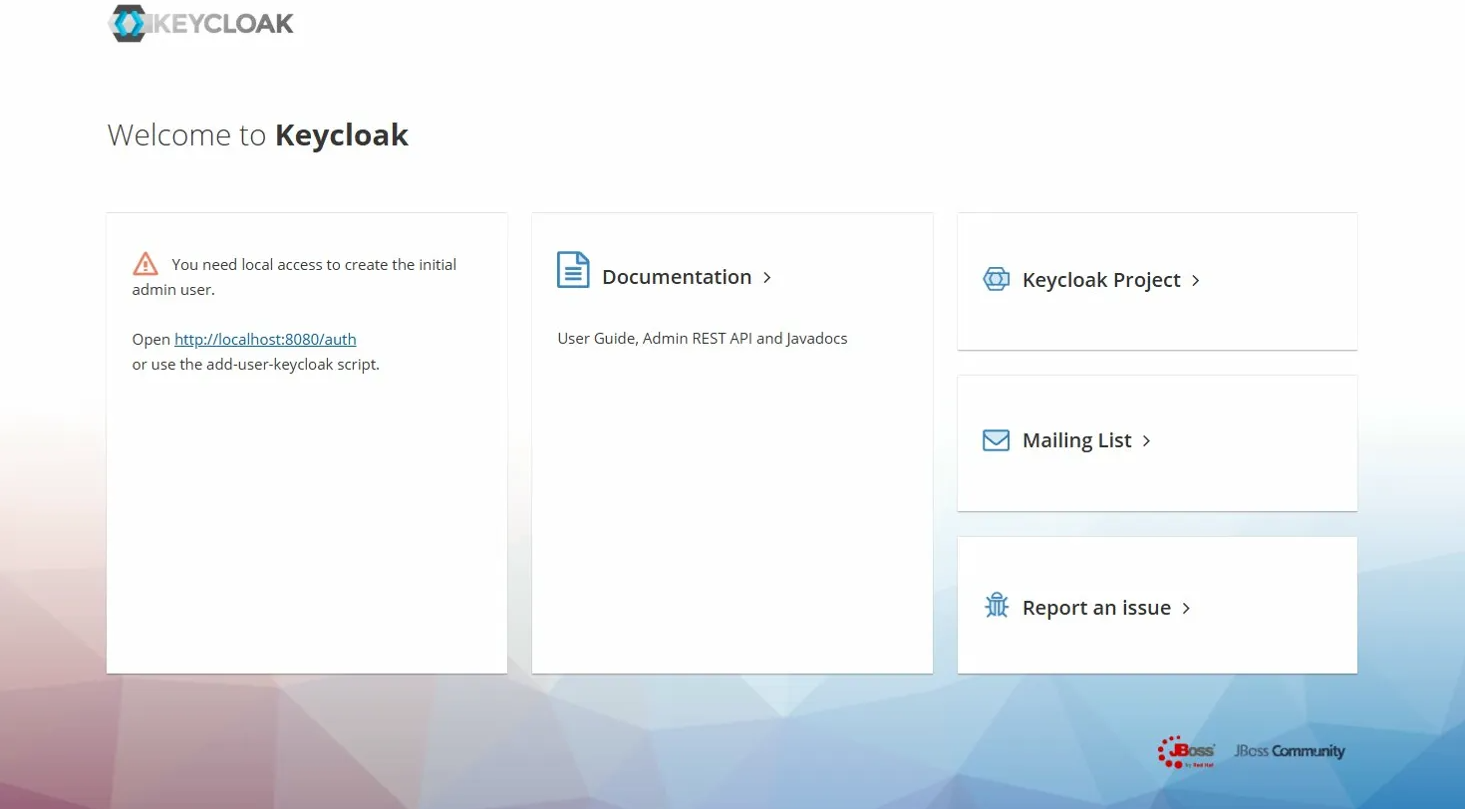
In this example, the assigned port is 31846. Connect to http://<YOUR_MASTER_IP>:<YOUR_KEYCLOAK_PORT>.
Create admin user
To access the Keycloak administration console, you must first create an admin user locally, directly on the Keycloak pod.
Open a shell session inside the pod.
kubectl exec -it keycloak-0 -n keycloak -- bash
Once inside, run the following commands to create the admin user.
# You can replace admin and admin123 by the credentials of your choice
/opt/jboss/keycloak/bin/add-user-keycloak.sh \
  -u admin \
  -p admin123

# Then reload keycloak
/opt/jboss/keycloak/bin/jboss-cli.sh --connect command=:reload
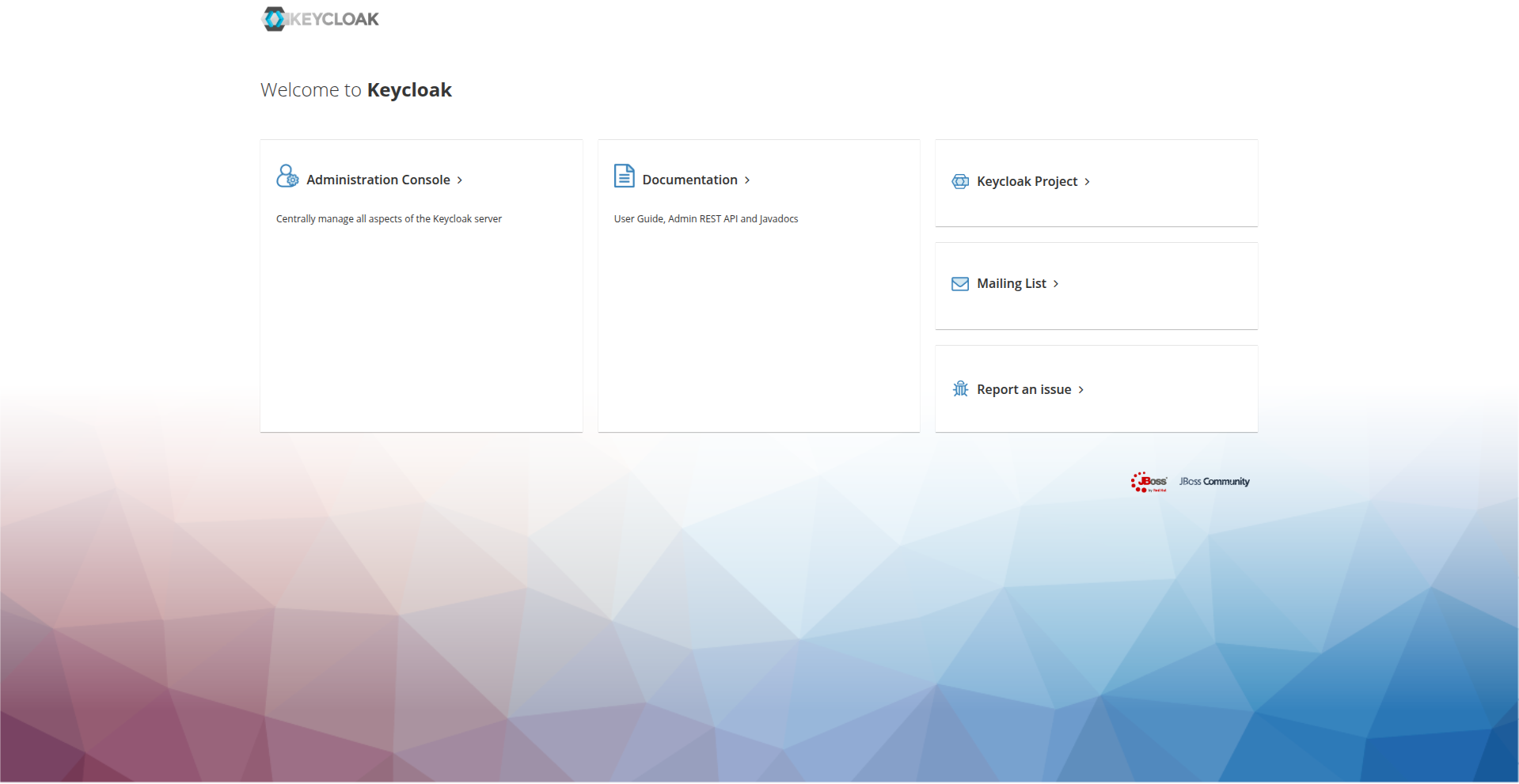
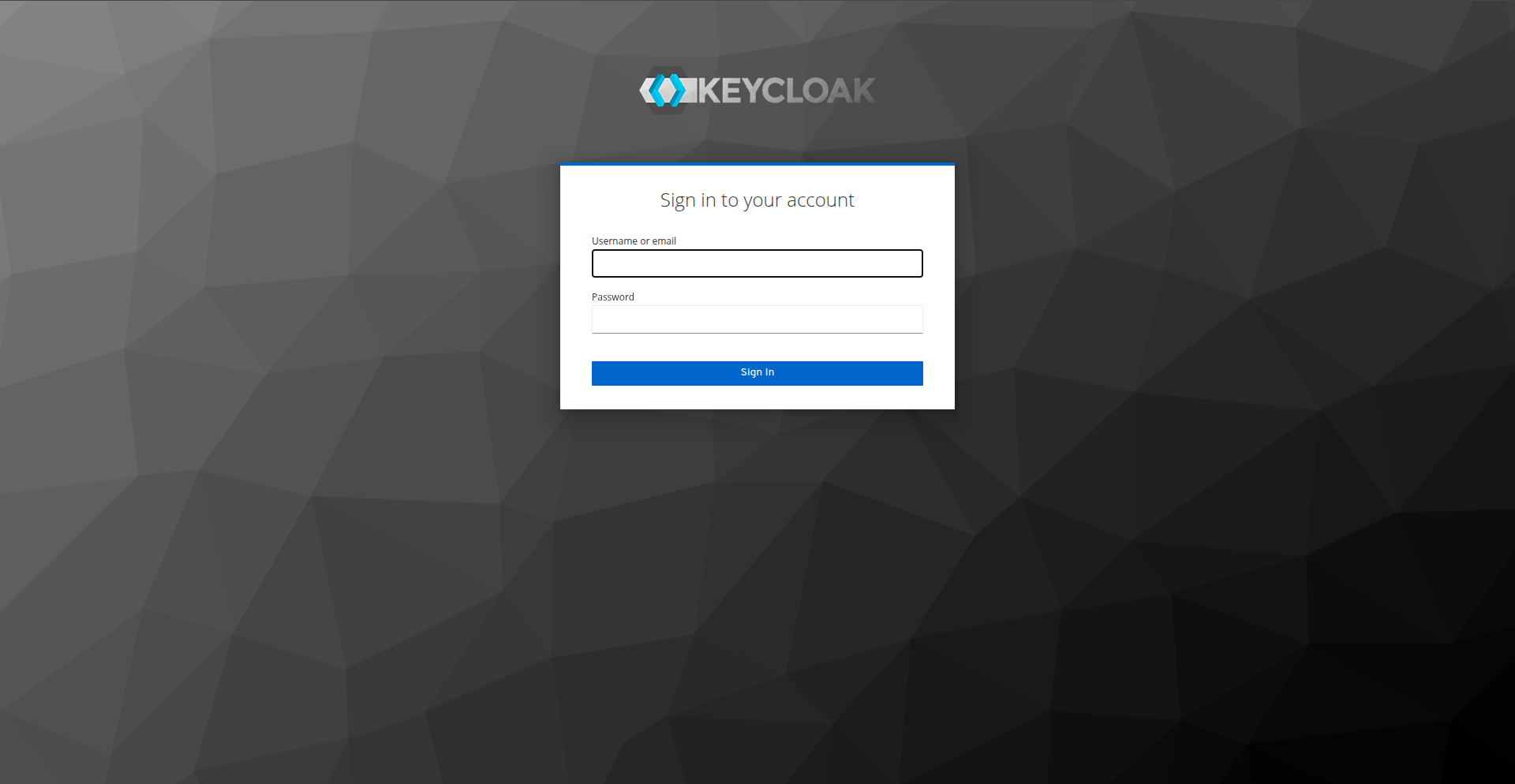
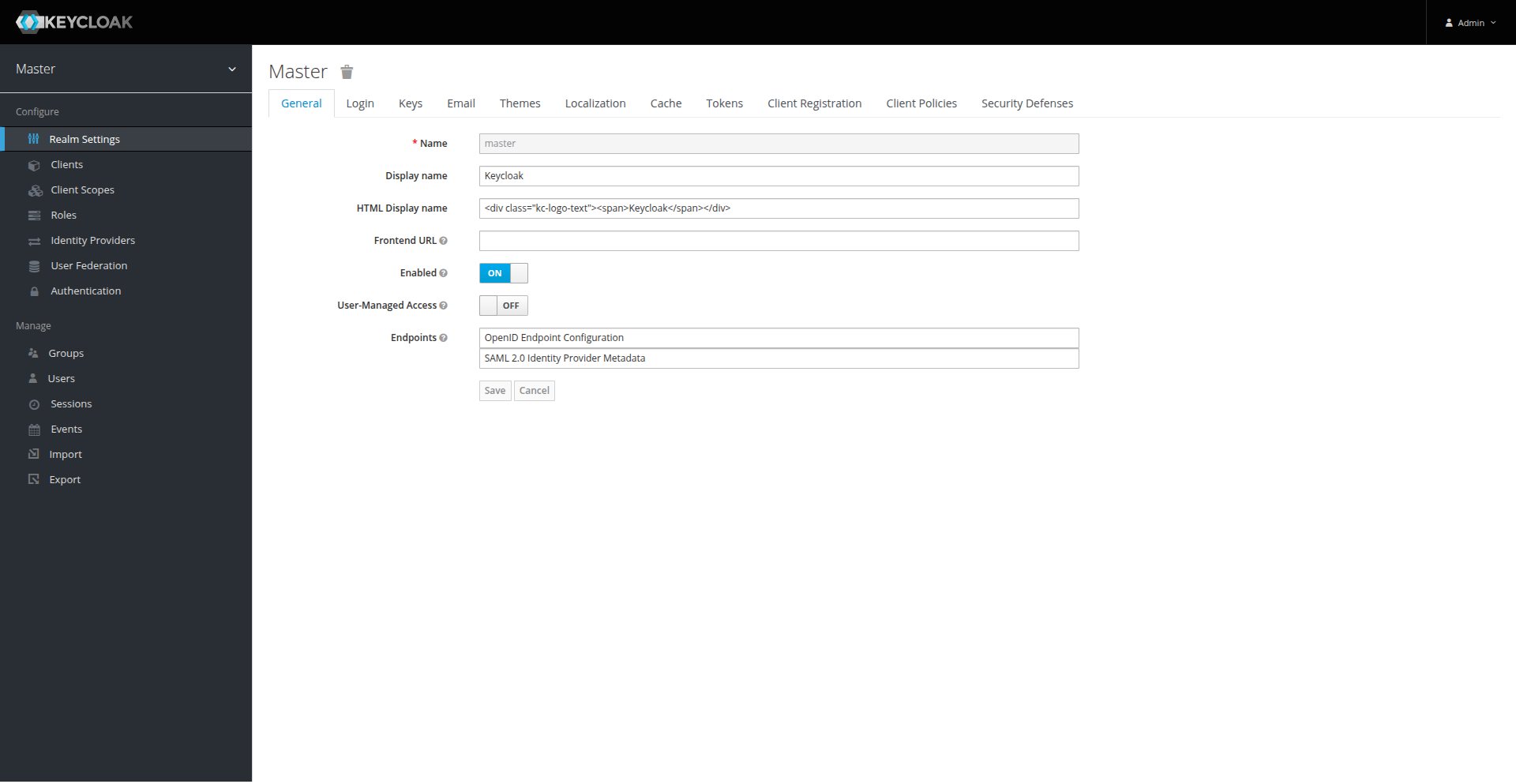
Reconnect to the web UI. You should now be able to access the administration console.
Import LDAP users
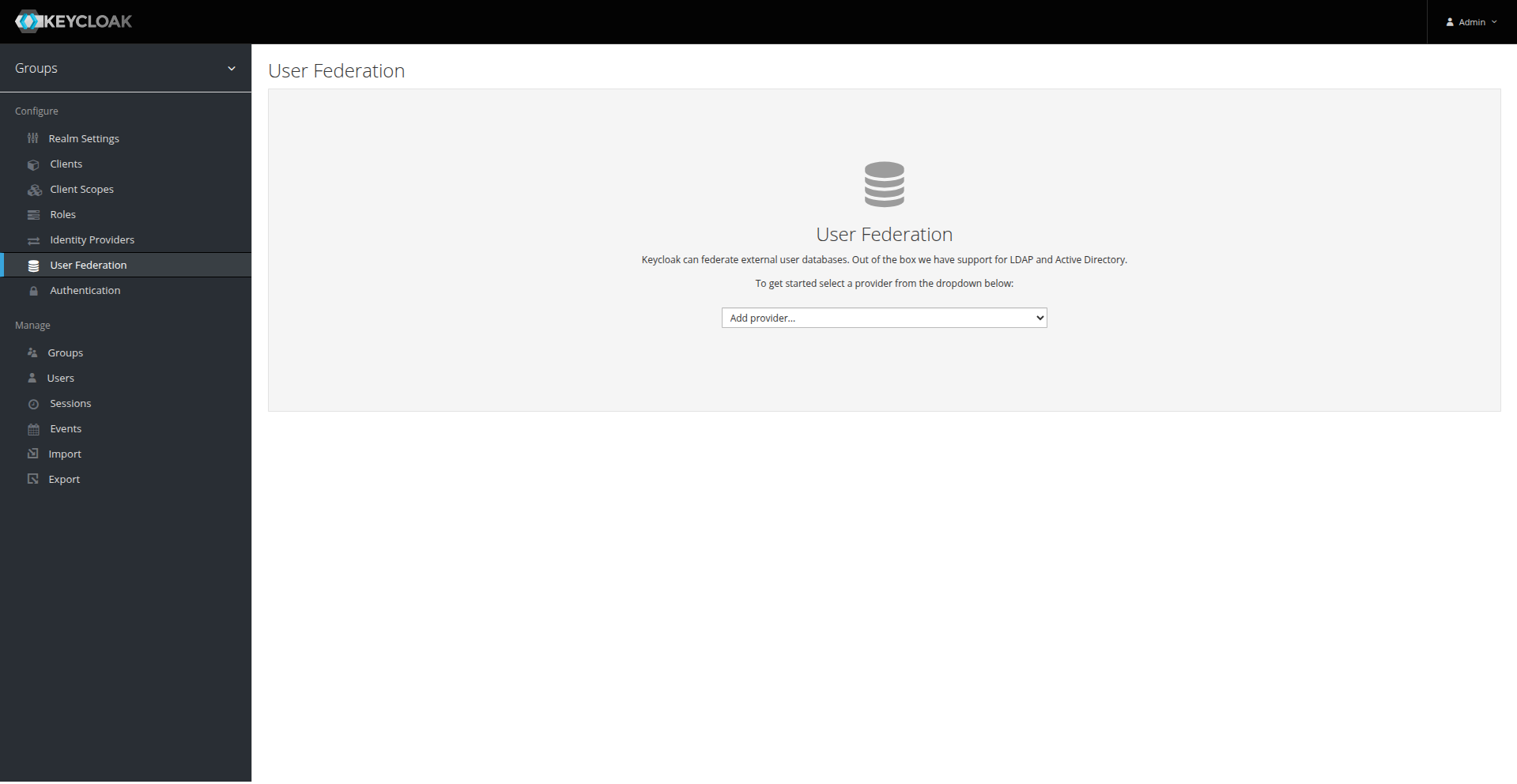
In the administration console, navigate to User Federation and click Add provider > ldap.
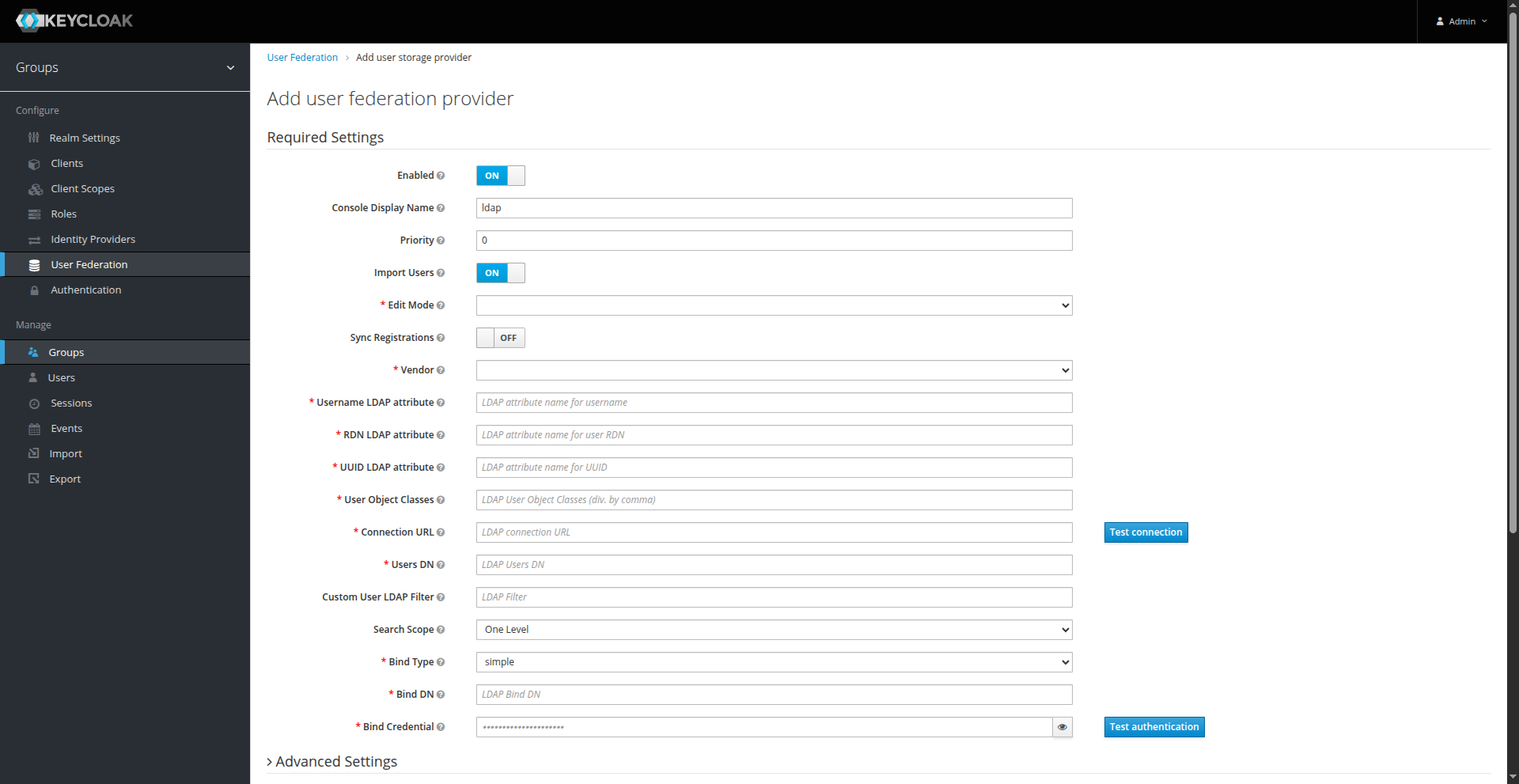
Complete the fields according to your LDAP server configuration.
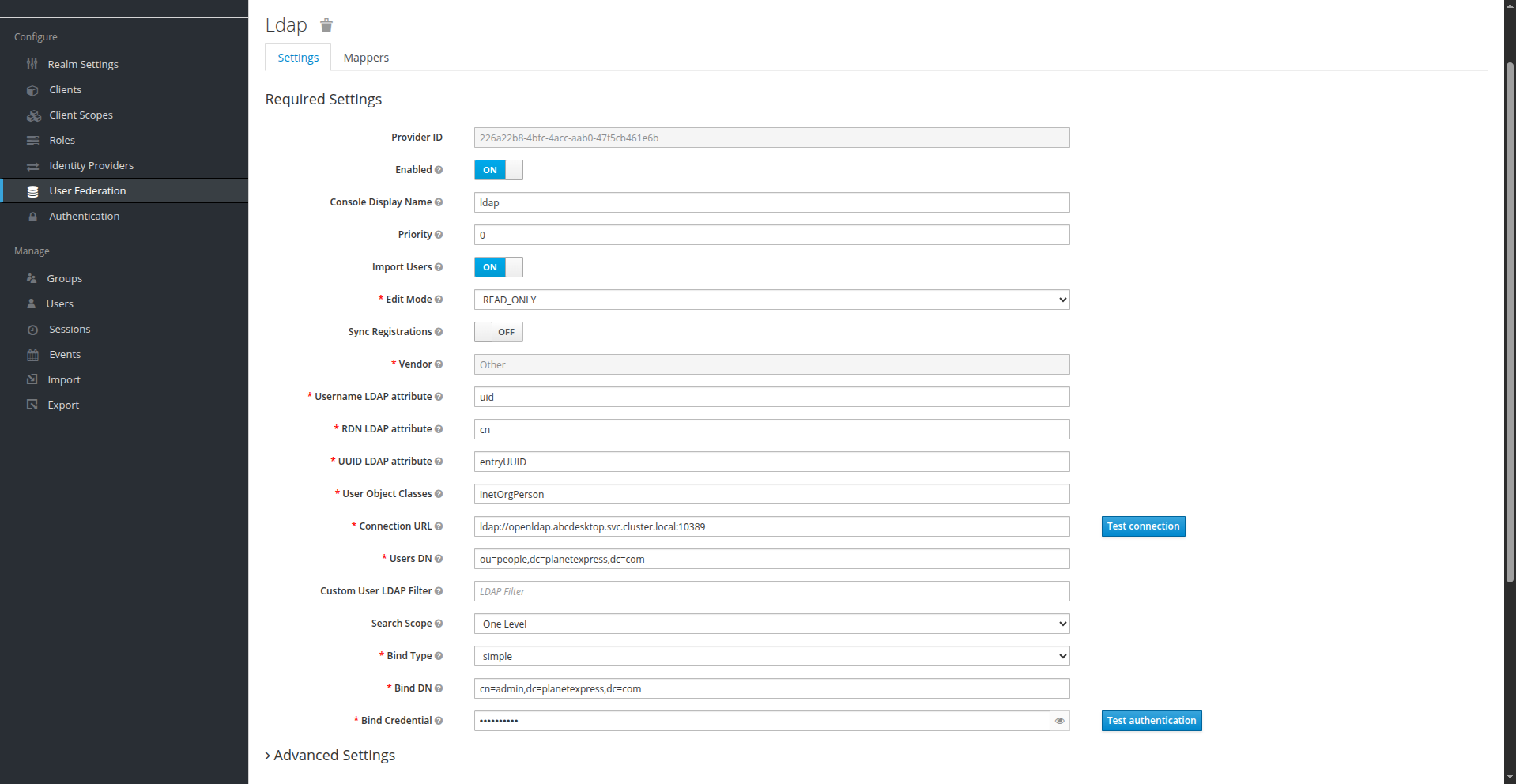
For this example, the configuration appears as follows.
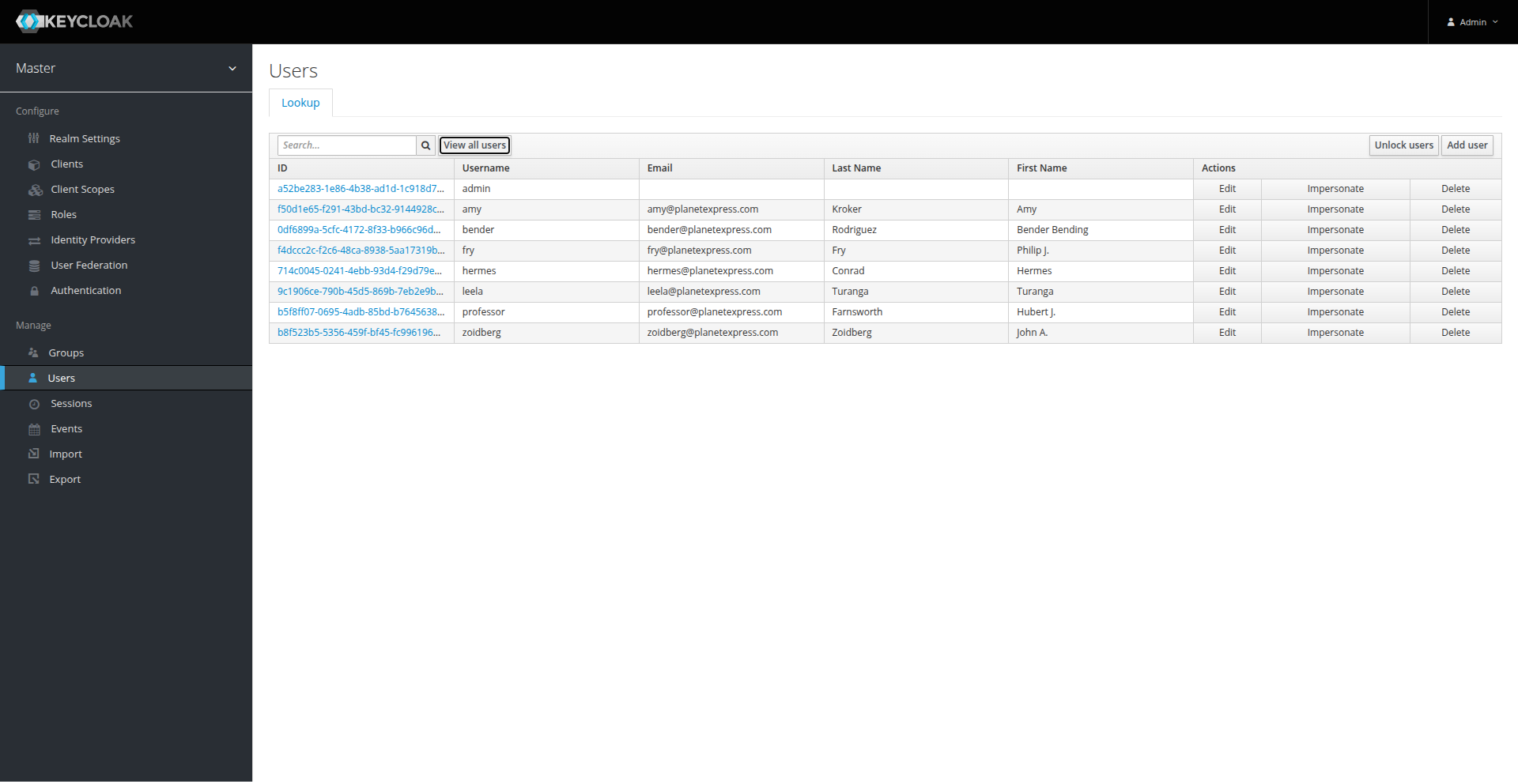
After completing the form, click Synchronize all users to import users from LDAP. Verify the import by navigating to the Users page.
Add mappers to User federation (Optional)
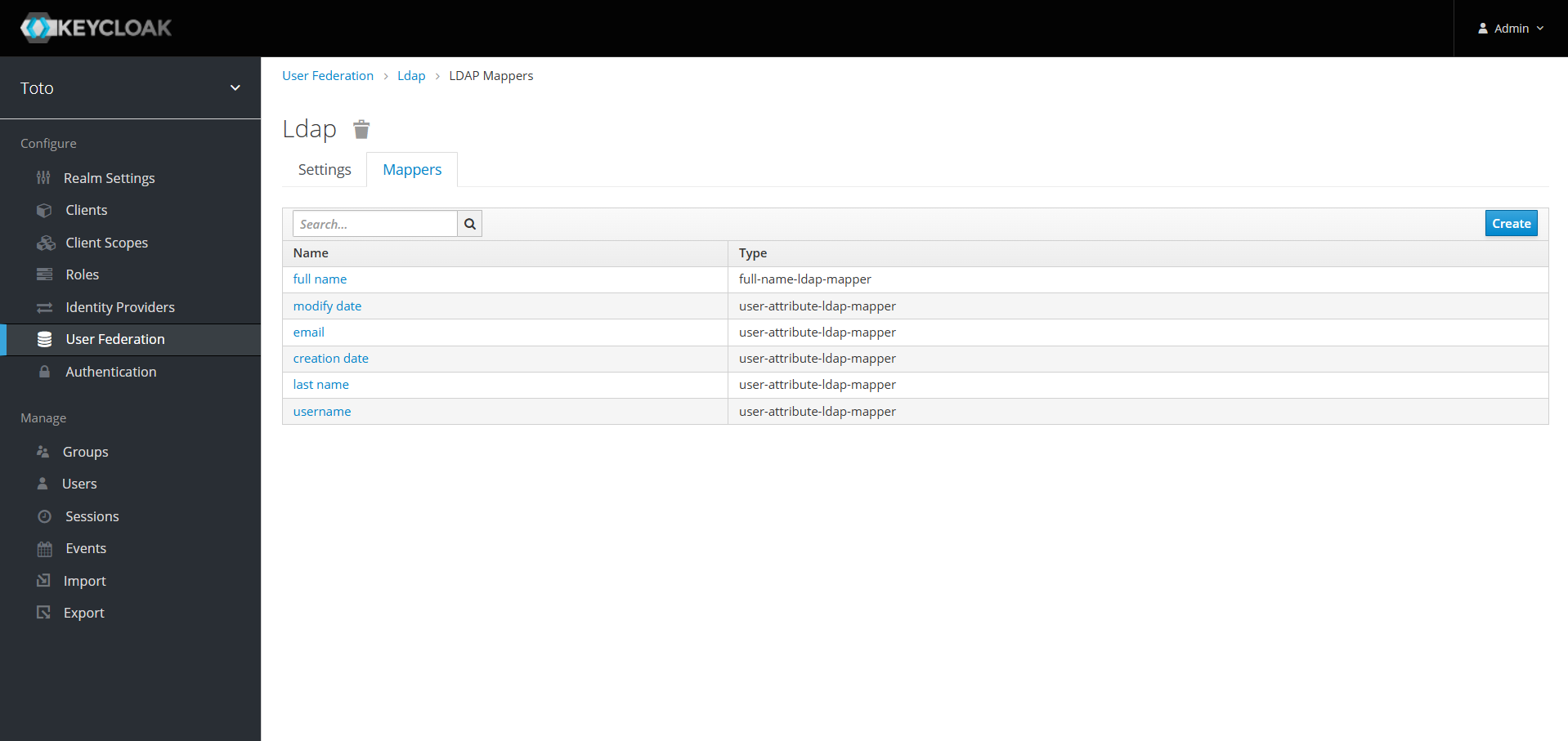
By default, Keycloak imports only the following attributes for each user during synchronization:
full namemodify dateemailcreation datelast nameusername
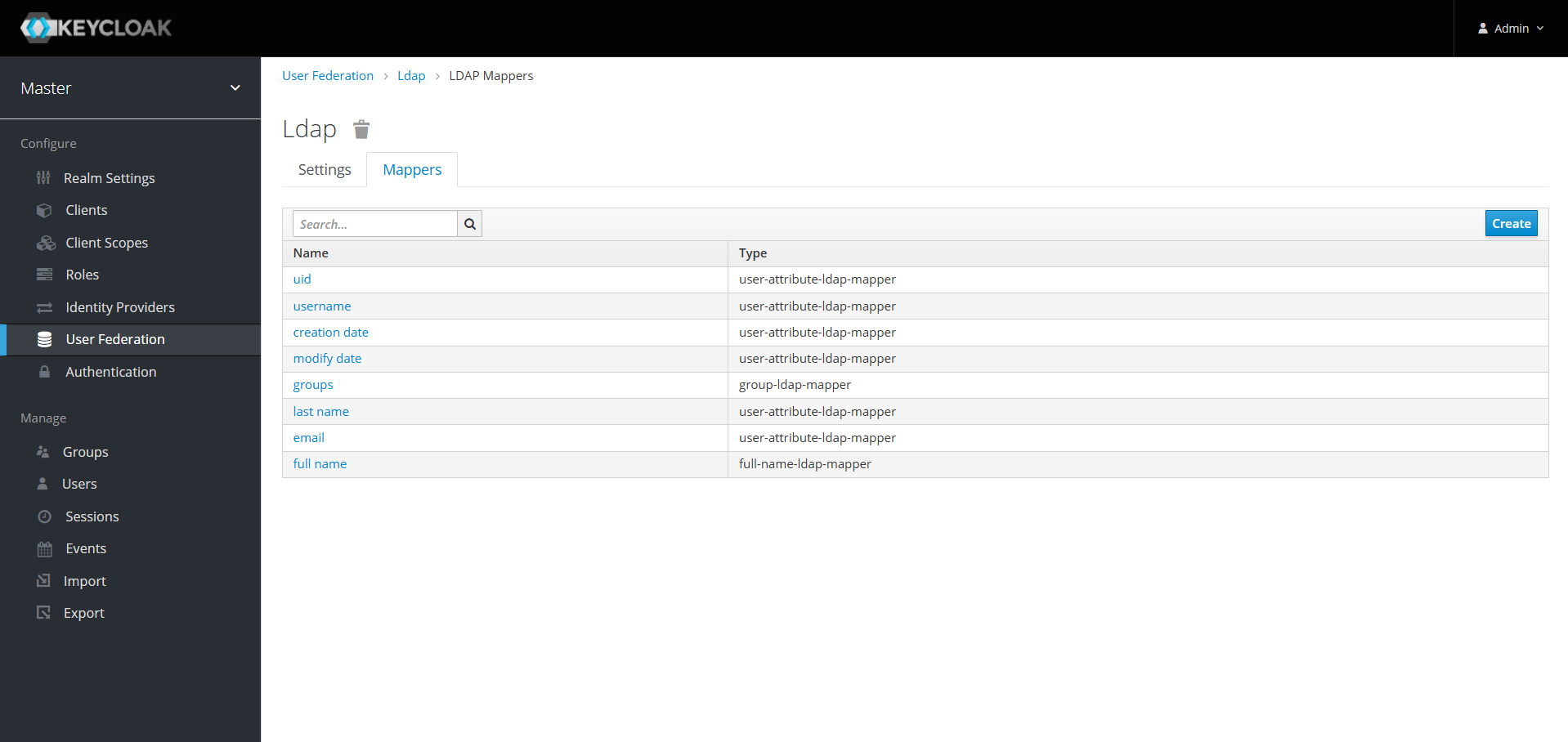
You may need to import additional attributes from your LDAP server. To do so, you must create additional attribute mappers. Navigate to the Mappers tab on the User Federation page and create one mapper per attribute you want to import.
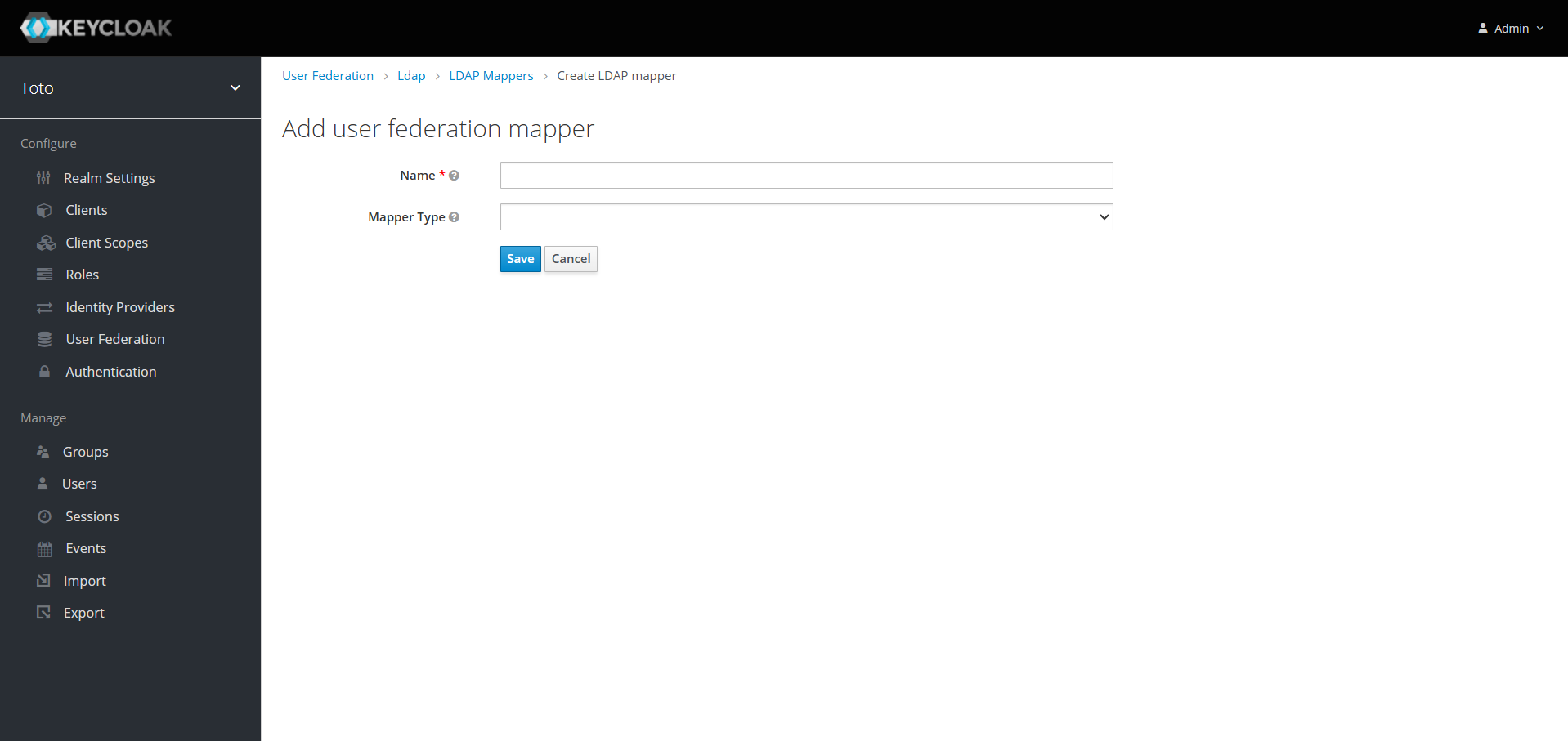
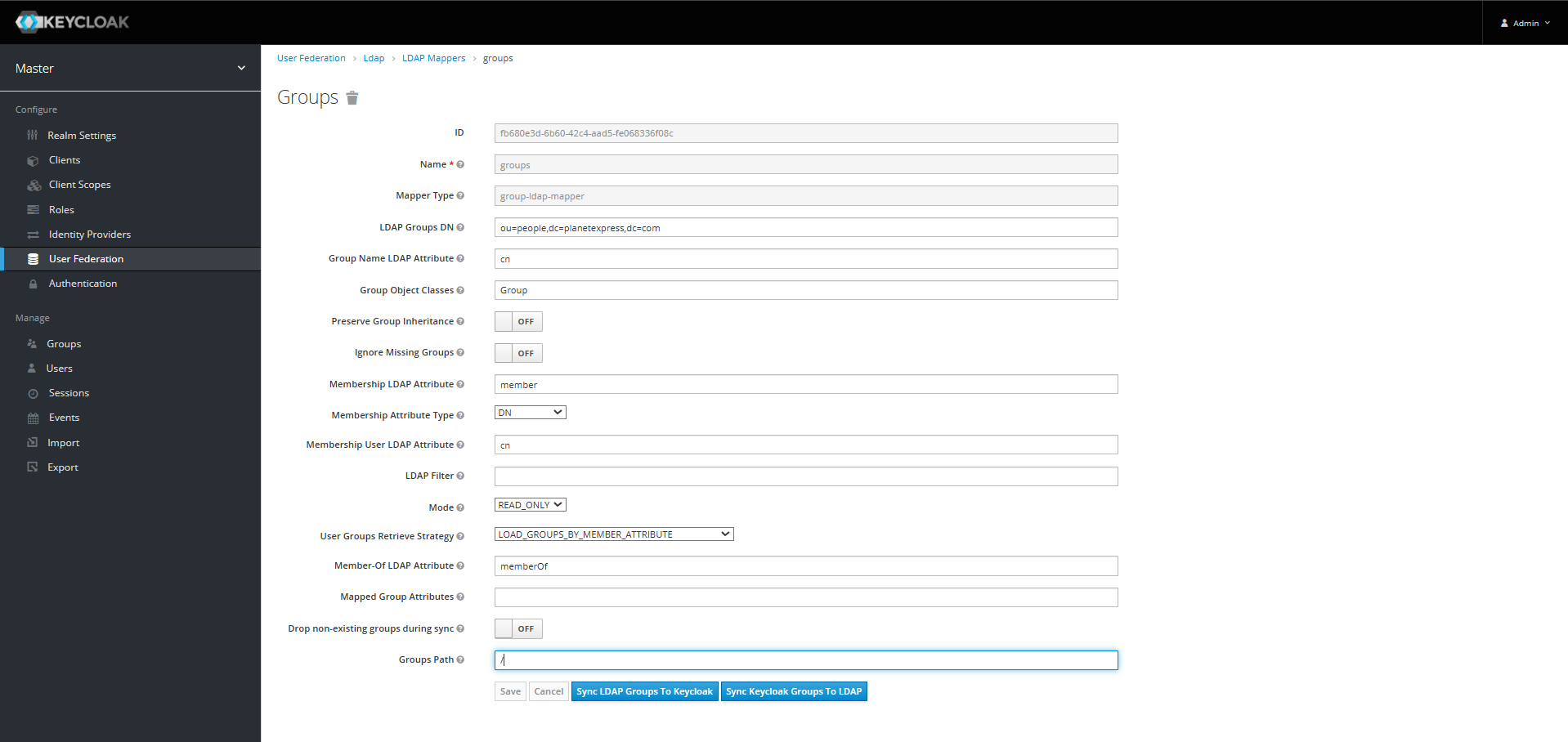
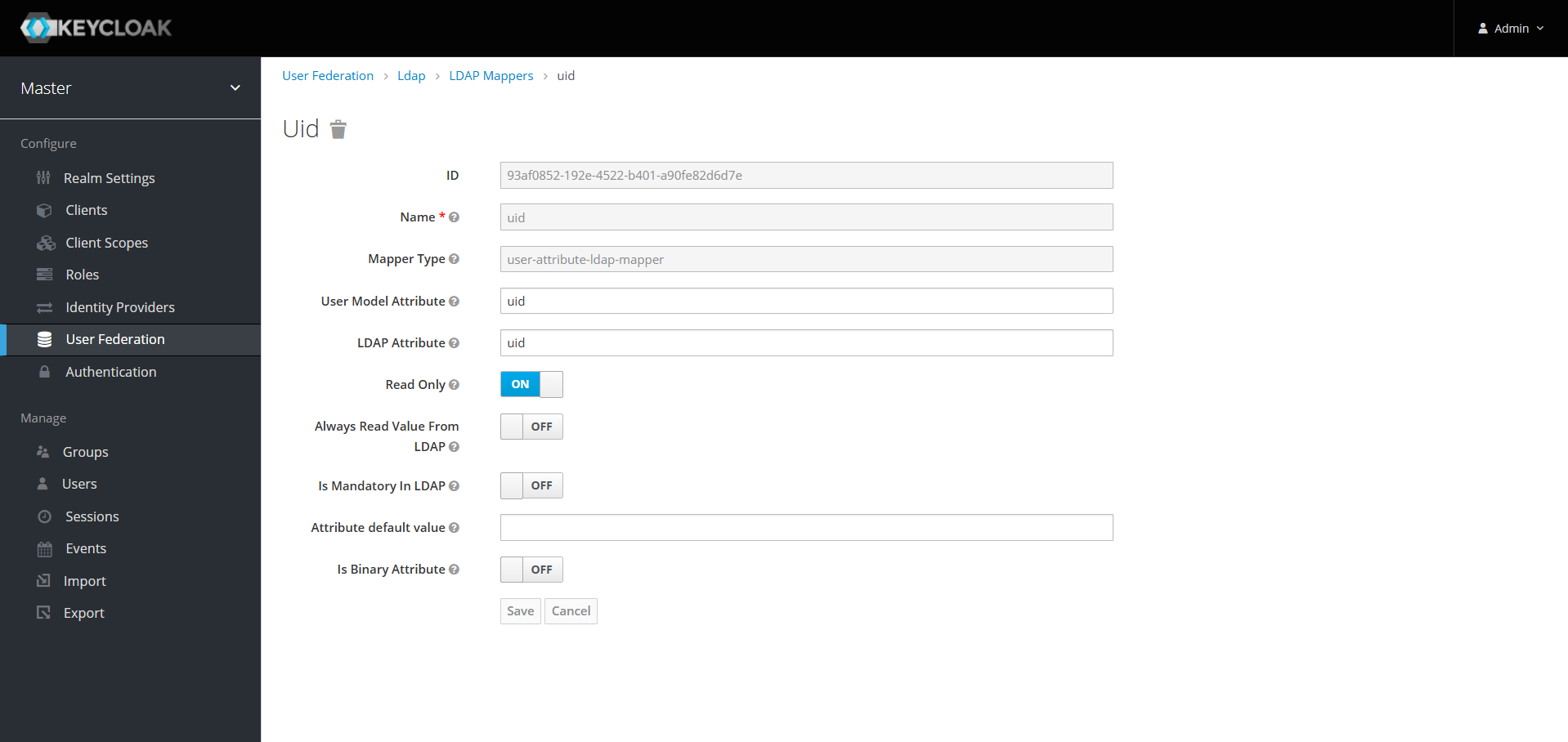
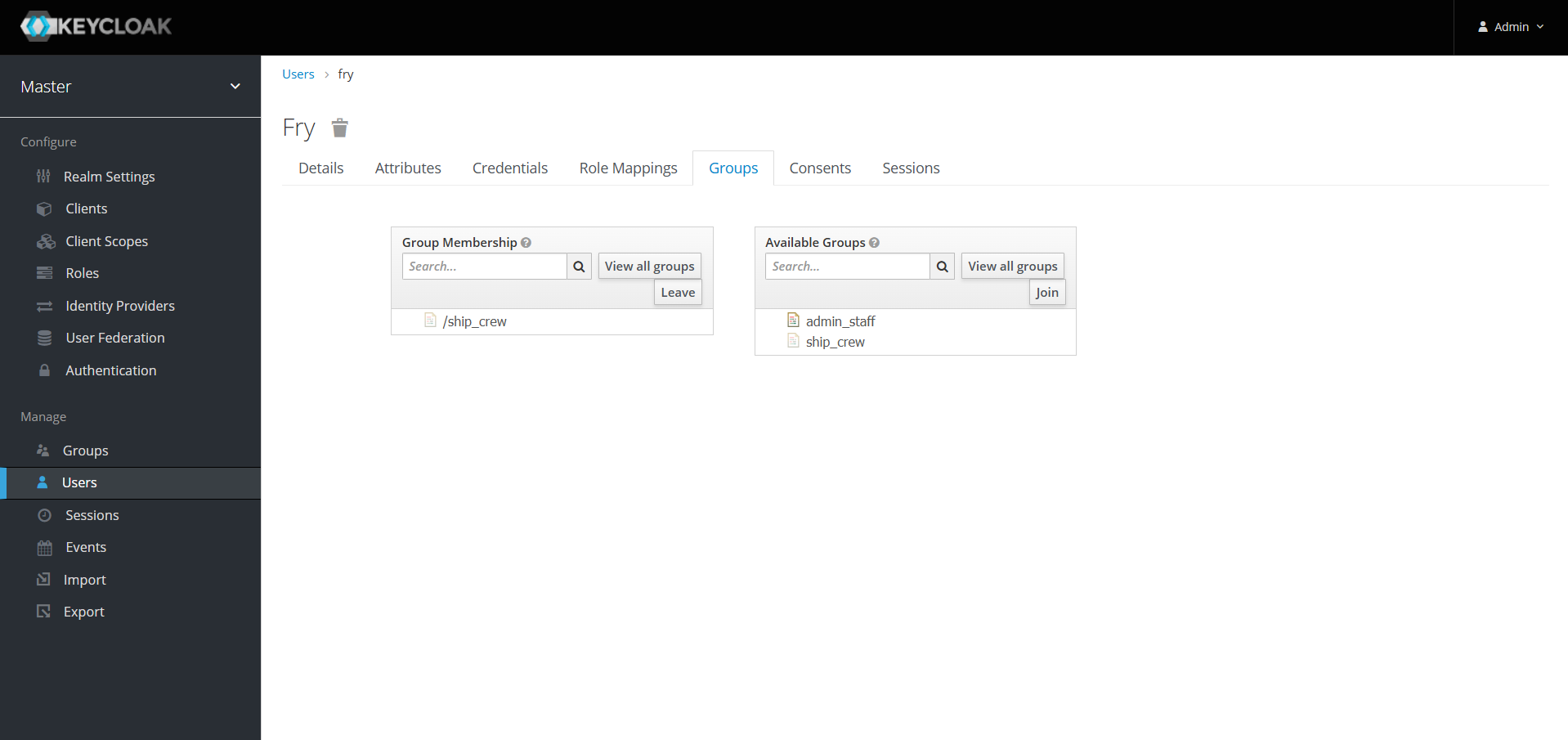
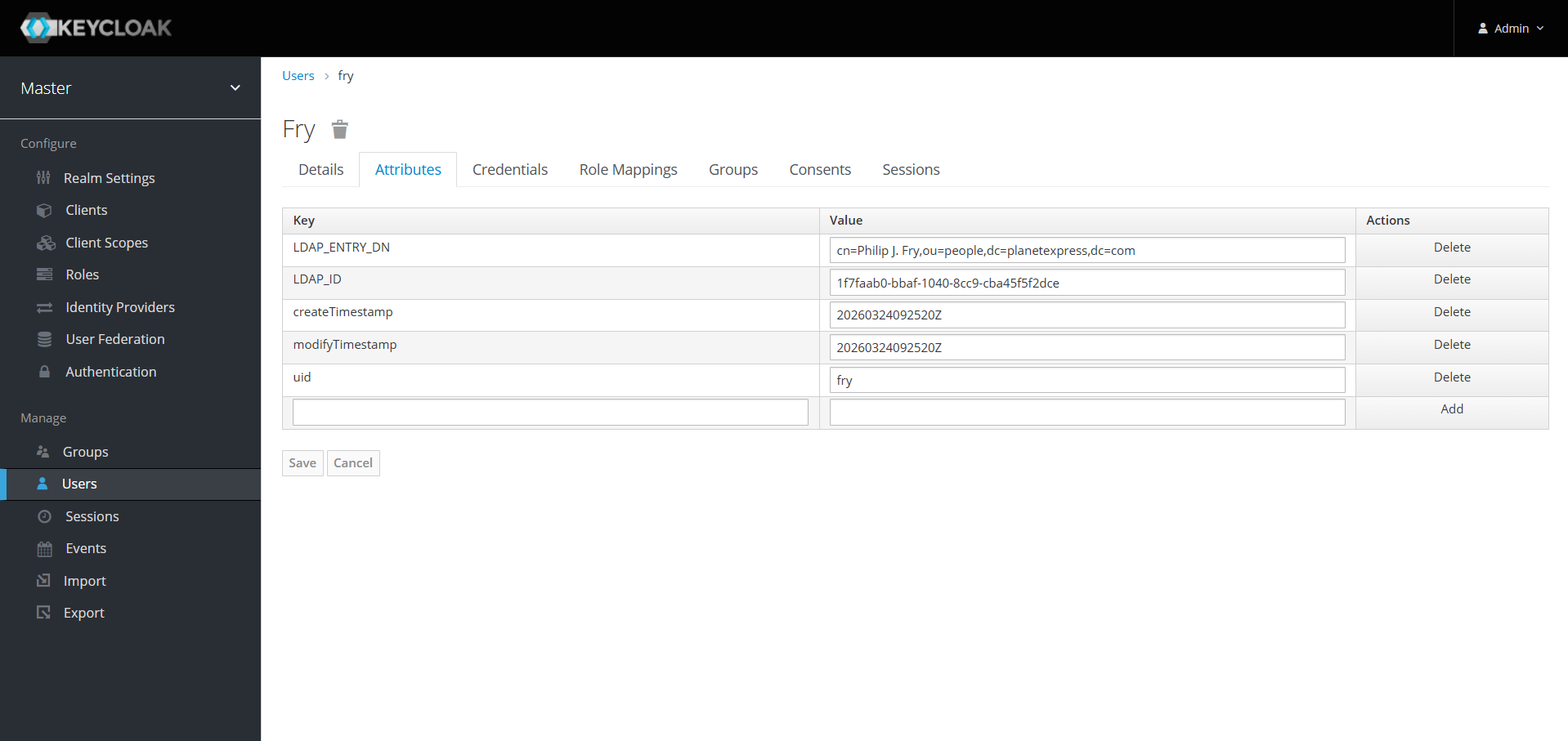
In this example, the groups and uid attributes are required.
Inspect a user record to verify that the new attributes are populated.
Create a client
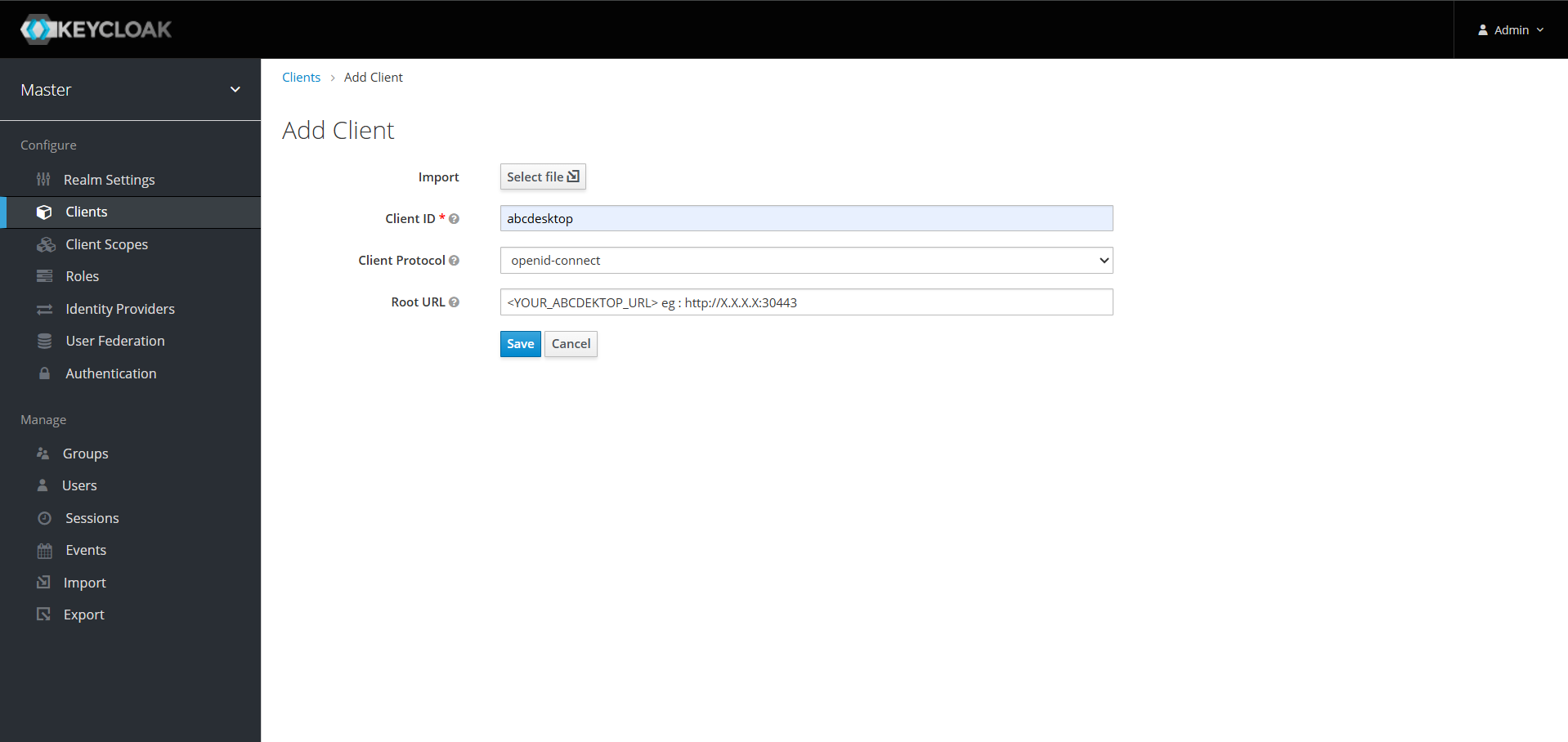
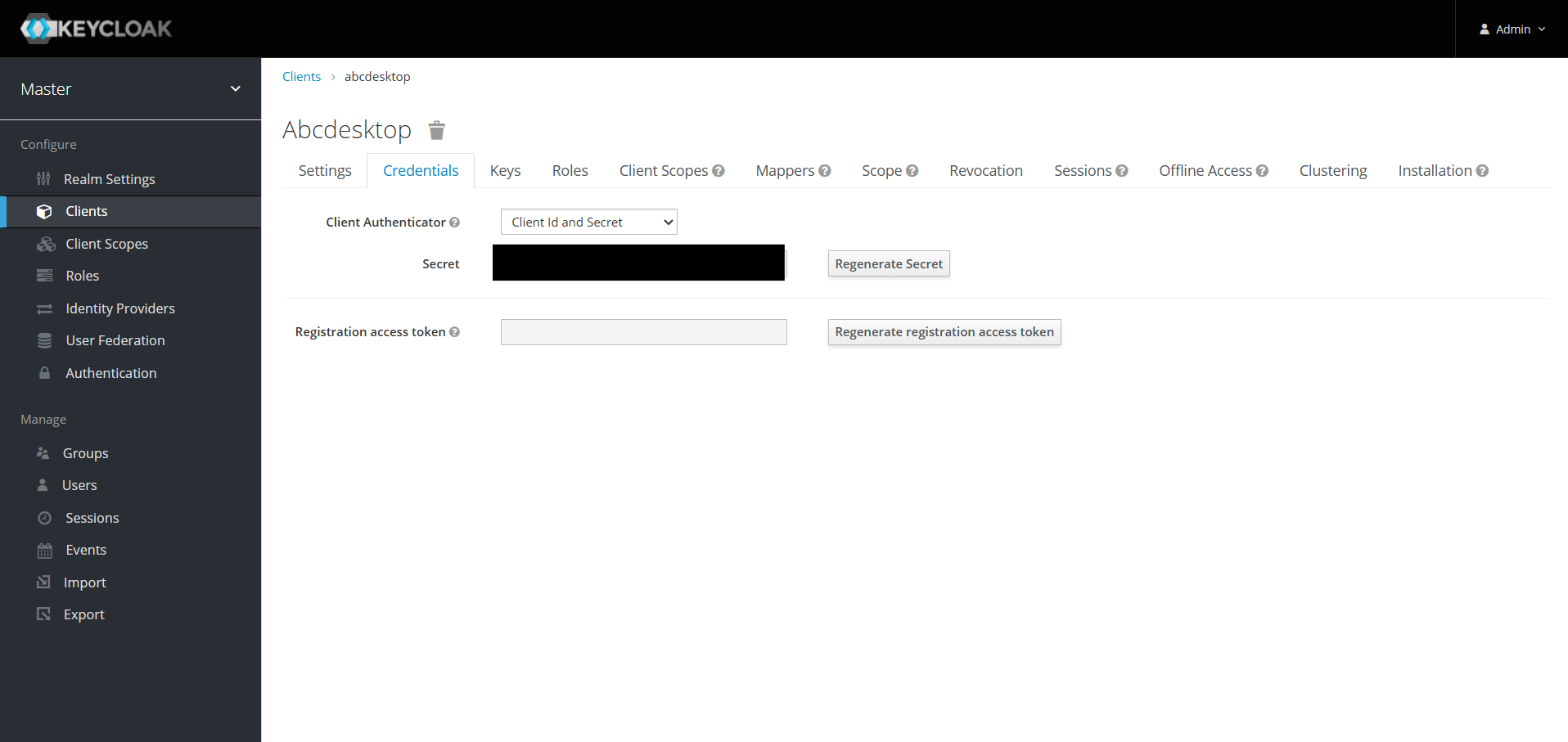
To enable authentication through Keycloak, you must generate a client secret. Navigate to the Clients page, click Create, complete the required fields, and save the client.
Navigate to the Credentials tab to retrieve the generated client secret.
Info
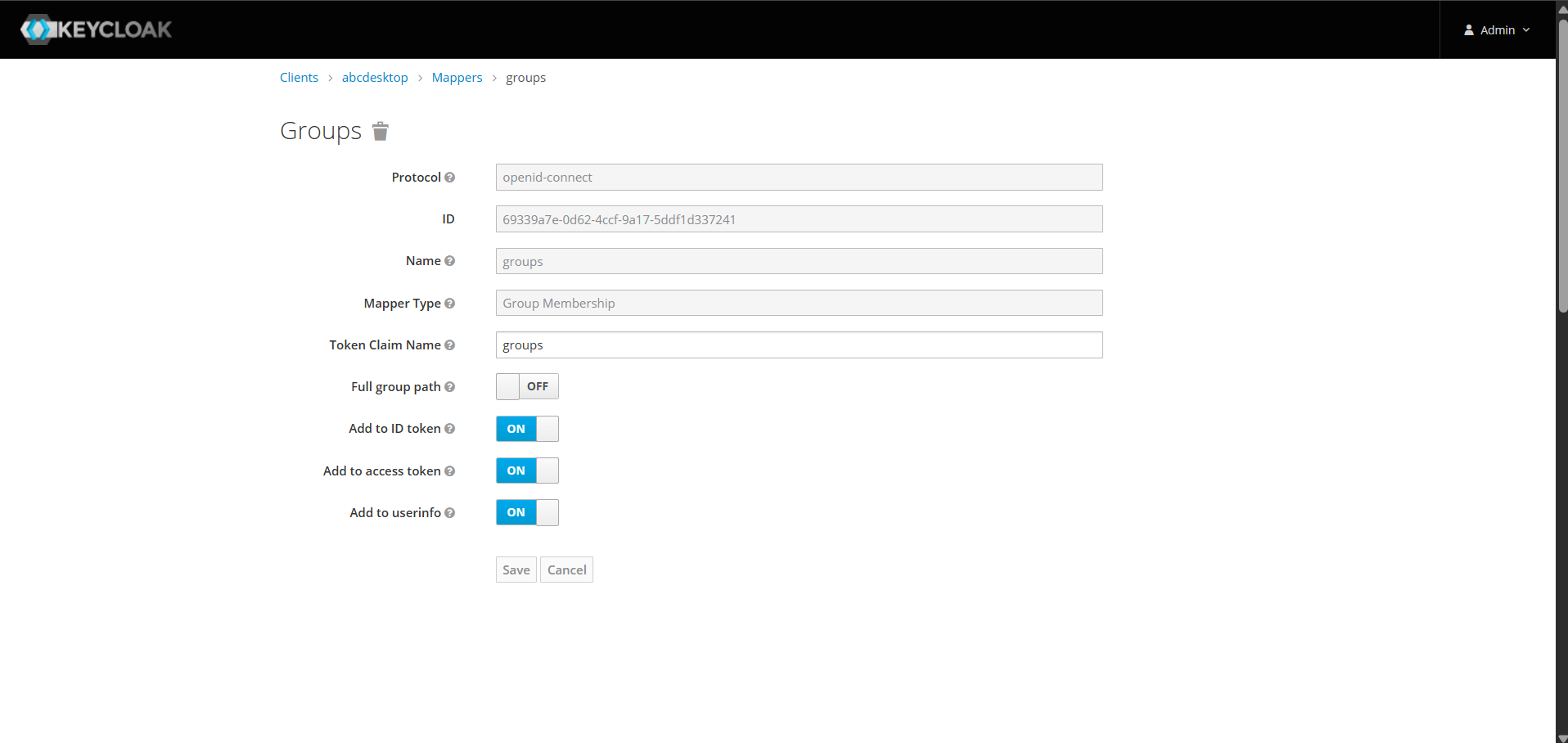
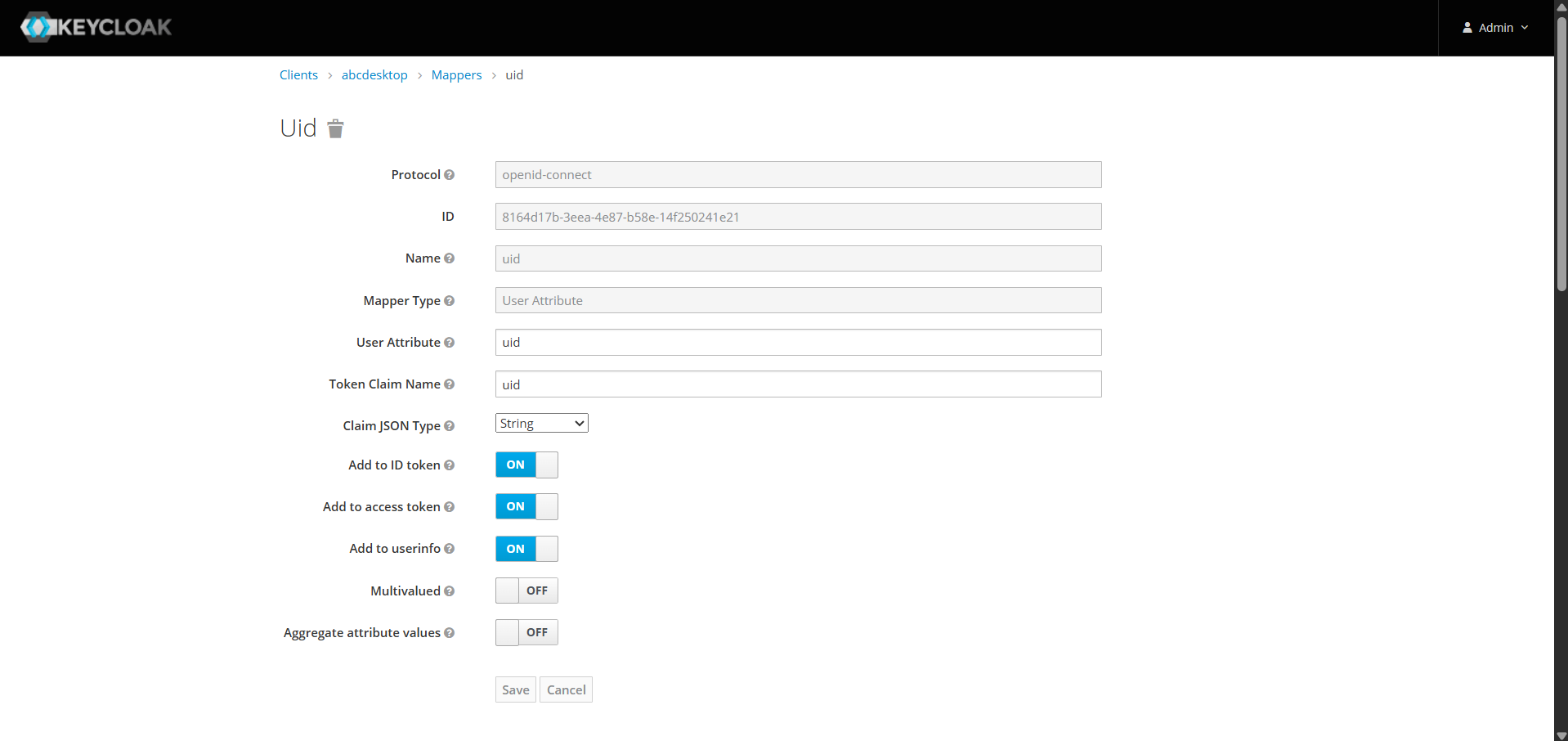
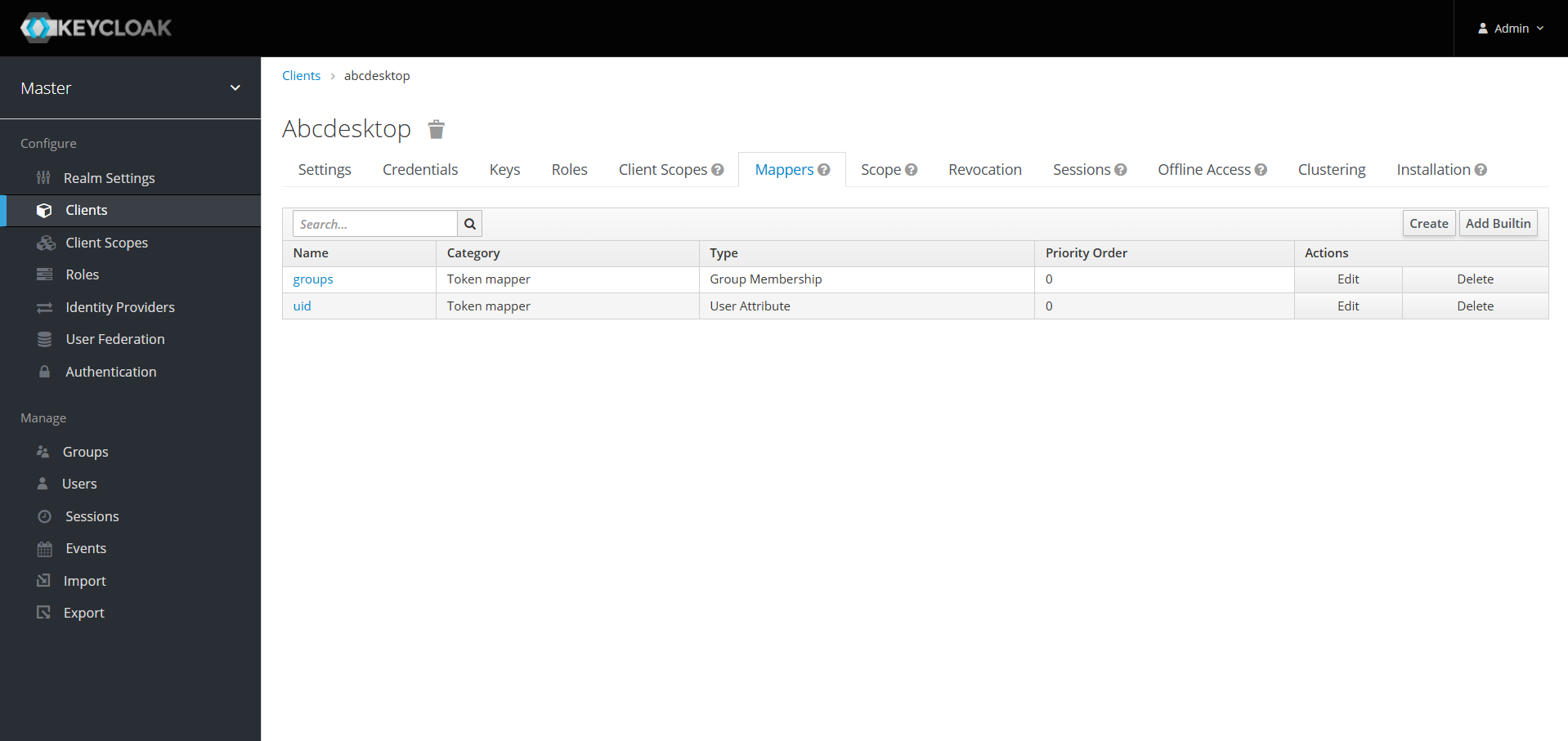
If you created attribute mappers in the previous step, you must also create corresponding client-side mappers.
show details
Navigate to the Mappers tab and create one client-side mapper for each mapper previously defined.
In this example, both groups and uid client-side mappers are required.
Update od.config file
Configure abcdesktop to use Keycloak as the authentication provider by updating the od.config file as described on this page.
Restart the pyos service by running the following commands.
kubectl create -n abcdesktop configmap abcdesktop-config --from-file=od.config -o yaml --dry-run=client | kubectl replace -n abcdesktop -f -
kubectl rollout restart deploy pyos-od -n abcdesktop
You can now authenticate through Keycloak. Attempt to sign in as fry.
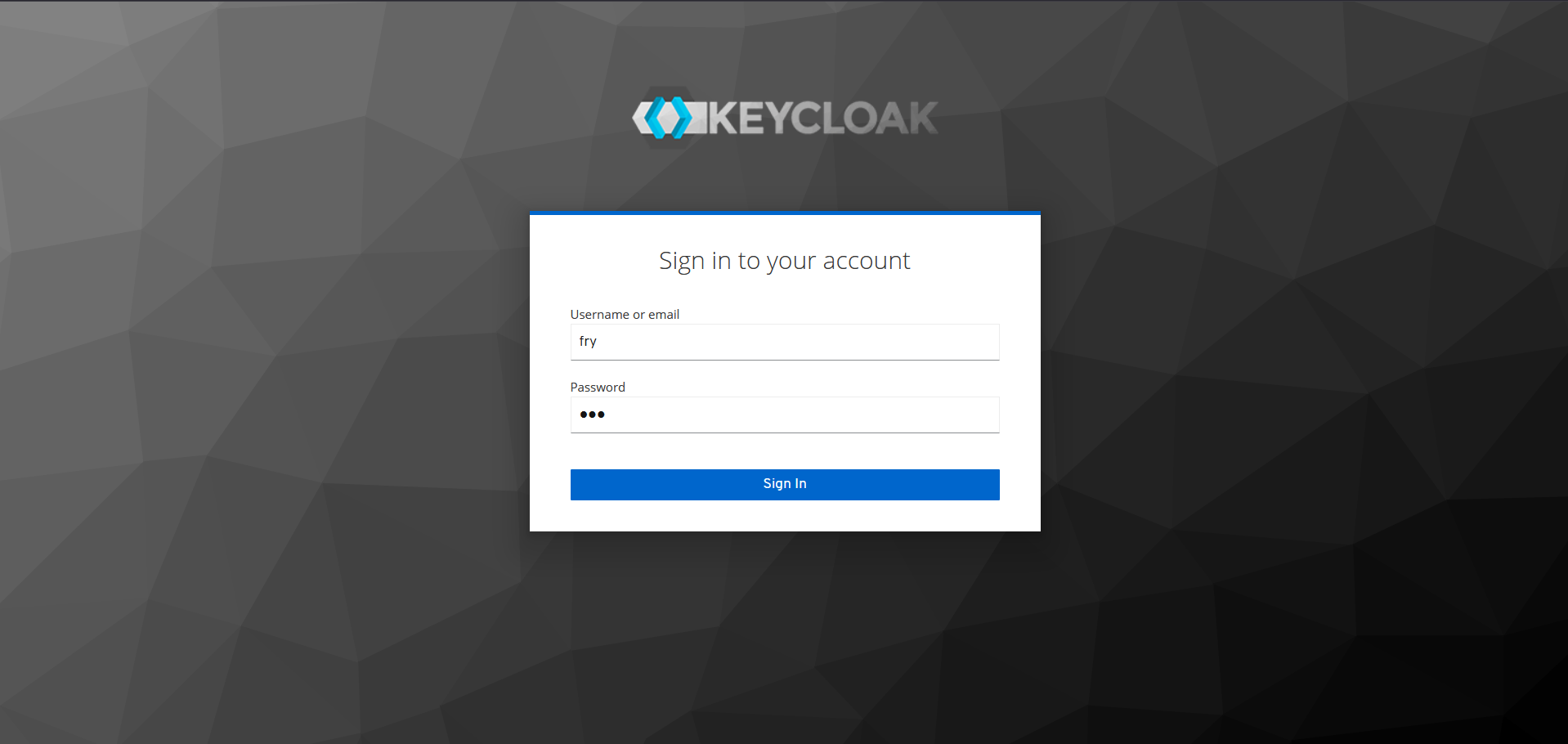
A successful login creates the user desktop. Inspect the pyos logs to confirm that Keycloak is the active authentication provider.
kubectl get pods -n abcdesktop
NAME                            READY   STATUS    RESTARTS   AGE
console-od-7f548d74fd-48rpv     1/1     Running   0          9d
fry-c3896                       3/3     Running   0          2d23h
memcached-od-796c455cd-hqhlb    1/1     Running   0          9d
mongodb-od-0                    2/2     Running   0          9d
nginx-od-6657dd8c9-c979g        1/1     Running   0          9d
openldap-od-6f4797f9d-86jdd     1/1     Running   0          9d
pyos-od-95789468f-9dl68         1/1     Running   0          2d23h
router-od-867f5576dd-p9hj5      1/1     Running   0          9d
speedtest-od-78cdbdd9c6-vphfl   1/1     Running   0          9d
kubectl logs pyos-od-95789468f-9dl68 -n abcdesktop|grep authservice
2026-04-02 13:42:52 test-pl-worker3 140187023907640 authservice [DEBUG  ] oc.auth.authservice.ODAuthTool.login:anonymous pdr.authenticate provider=keycloak done
2026-04-02 13:42:52 test-pl-worker3 140187023907640 authservice [DEBUG  ] oc.auth.authservice.ODAuthTool.login:anonymous pdr.getuserinfo provider=keycloak start
2026-04-02 13:42:52 test-pl-worker3 140187023907640 authservice [DEBUG  ] oc.auth.authservice.ODExternalAuthProvider.getuserinfo:anonymous dump userinfo data={'sub': 'f4dccc2c-f2c6-48ca-8938-5aa17319b238', 'uid': 'fry', 'email_verified': True, 'name': 'Philip J. Fry', 'groups': ['ship_crew'], 'preferred_username': 'fry', 'given_name': 'Philip J.', 'family_name': 'Fry', 'email': 'fry@planetexpress.com'}
2026-04-02 13:42:52 test-pl-worker3 140187023907640 authservice [DEBUG  ] oc.auth.authservice.ODExternalAuthProvider.getuserinfo:anonymous expecting to read posix account response format
2026-04-02 13:42:52 test-pl-worker3 140187023907640 authservice [DEBUG  ] oc.auth.authservice.ODExternalAuthProvider.getuserinfo:anonymous posix account posixuser={'cn': 'fry', 'uid': 'fry', 'gid': 'balloon', 'uidNumber': 4096, 'gidNumber': 4096, 'homeDirectory': '/home/fry', 'loginShell': '/bin/bash', 'description': 'abcdesktop generated account', 'groups': None, 'gecos': None}
2026-04-02 13:42:52 test-pl-worker3 140187023907640 authservice [DEBUG  ] oc.auth.authservice.ODExternalAuthProvider.getuserinfo:anonymous userinfo={'sub': 'f4dccc2c-f2c6-48ca-8938-5aa17319b238', 'uid': 'fry', 'email_verified': True, 'name': 'Philip J. Fry', 'groups': ['ship_crew'], 'preferred_username': 'fry', 'given_name': 'Philip J.', 'family_name': 'Fry', 'email': 'fry@planetexpress.com', 'userid': 'f4dccc2c-f2c6-48ca-8938-5aa17319b238', 'posix': {'cn': 'fry', 'uid': 'fry', 'gid': 'balloon', 'uidNumber': 4096, 'gidNumber': 4096, 'homeDirectory': '/home/fry', 'loginShell': '/bin/bash', 'description': 'abcdesktop generated account', 'groups': None, 'gecos': None}}
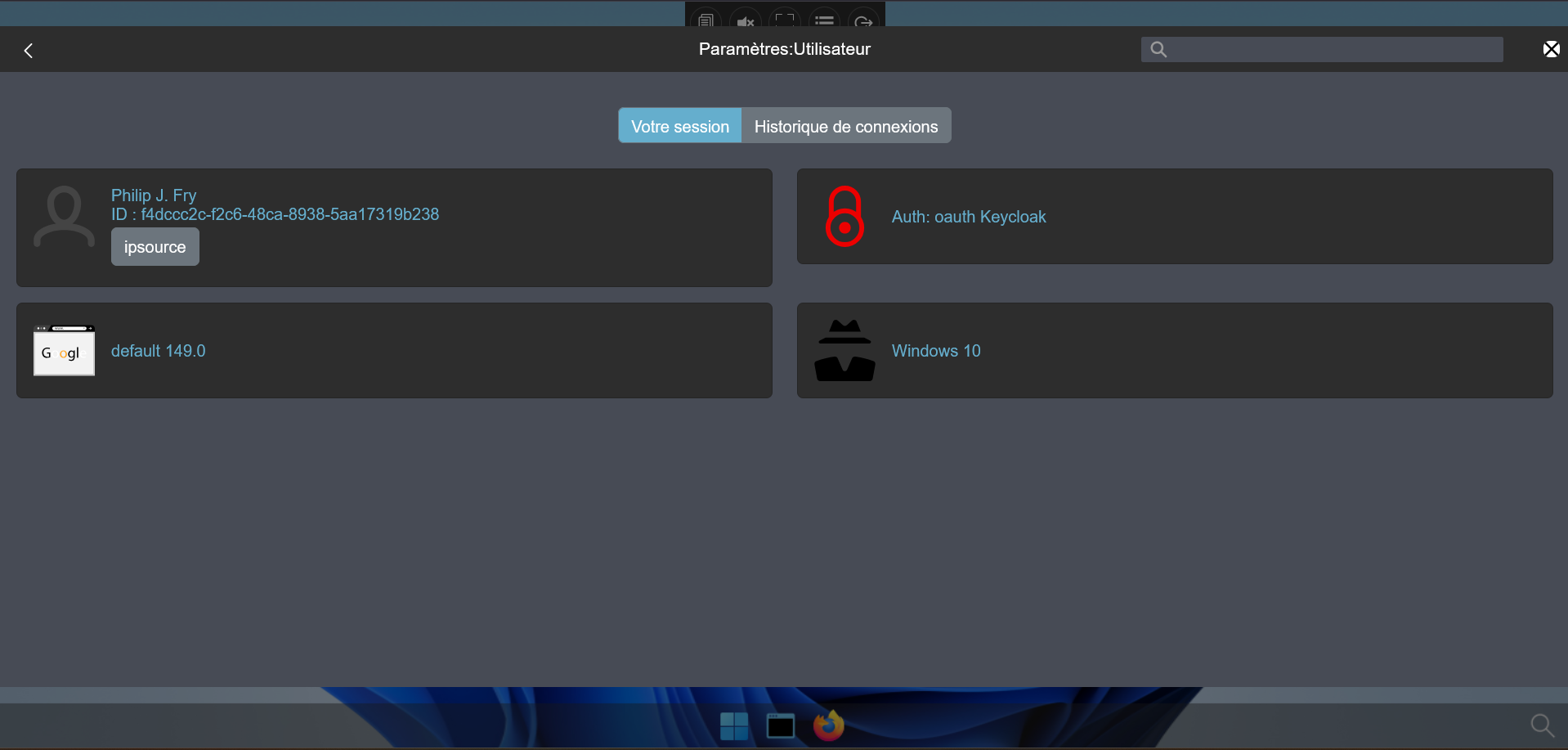
Keycloak is now fully configured with an external LDAP server for use with abcdesktop.