Publish your website as a public secured service
Requirements
- read the previous chapter Deploy abcdesktop on AWS with Amazon Elastic Kubernetes Service
- an AWS account
- your own internet domain
awscommand line interface aws-clikubectlcommand linewgetcommand line
Overview
In this chapter, you will use a LoadBalancer service to expose your abcdesktop service with a public IP address, configure your DNS zone file to use your domain name, and enable TLS to secure the service.
Add tags for public subnets
By default, when creating your VPC, the public subnets do not have the kubernetes.io/role/elb=1 tag. This tag is required to expose your service through a load balancer on AWS, because AWS scans your VPC for subnets bearing this exact tag to determine where to place load balancers.
To add the tag, run the following command:
aws ec2 create-tags --resources <your_public_subnets_ids> --tags Key=kubernetes.io/role/elb,Value=1
You can find your public subnet IDs on the
Subnetspage of the VPC dashboard in the AWS console.
You can verify that the tags have been applied by running the following command:
aws ec2 describe-subnets --filters "Name=vpc-id,Values=<your_vpc_id>" "Name=tag:kubernetes.io/role/elb,Values=1" --query 'Subnets[*].[SubnetId,AvailabilityZone]' --output table
You should see the following output on stdout:
--------------------------------------------
|              DescribeSubnets             |
+---------------------------+--------------+
|  subnet-09c09bd5bbdec72a6 |  us-east-1b  |
|  subnet-02d592feab5bb0faf |  us-east-1a  |
+---------------------------+--------------+
Create a new http-router service yaml file
The default installation configures the http-router service as type NodePort. You will update it to type LoadBalancer to expose the service with a public IP address.
Create a file named http-router.yaml:
apiVersion: v1
kind: Service
metadata:
  name: http-router
  labels:
    abcdesktop/role: router-od
  annotations:
    service.beta.kubernetes.io/aws-load-balancer-type: "nlb-ip"
    service.beta.kubernetes.io/aws-load-balancer-scheme: "internet-facing"
    service.beta.kubernetes.io/aws-load-balancer-healthcheck-protocol: "http"
    service.beta.kubernetes.io/aws-load-balancer-healthcheck-port: "80"
    service.beta.kubernetes.io/aws-load-balancer-healthcheck-path: "/healthz"
spec:
  type: LoadBalancer
  selector:
    run: router-od
  ports:
    - name: https
      protocol: TCP
      port: 443
      targetPort: 443
    - name: http
      protocol: TCP
      port: 80
      targetPort: 80
Save your http-router.yaml file.
Delete the existing http-router service:
kubectl delete service http-router -n abcdesktop
service "http-router" deleted
Apply your new service/http-router:
kubectl apply -f http-router.yaml -n abcdesktop
service/http-router created
Wait a few minutes. The EXTERNAL-IP of the http-router service will initially remain in a Pending state:
kubectl get services http-router -n abcdesktop
NAME          TYPE           CLUSTER-IP      EXTERNAL-IP   PORT(S)        AGE
http-router   LoadBalancer   172.20.207.4    <pending>     80:32155/TCP   3s
Check the EXTERNAL-IP of the http-router service again:
kubectl get services http-router -n abcdesktop
The service has been assigned
k8s-abcdeskt-httprout-5ebf729011-0cdda549d4c8665f.elb.us-east-1.amazonaws.comas itsEXTERNAL-IP.
NAME          TYPE           CLUSTER-IP     EXTERNAL-IP                                                                     PORT(S)                      AGE
http-router   LoadBalancer   172.20.207.4   k8s-abcdeskt-httprout-5ebf729011-0cdda549d4c8665f.elb.us-east-1.amazonaws.com   443:32461/TCP,80:31216/TCP   2m3d
Open a web browser and navigate to the provided URL to access your abcdesktop service.
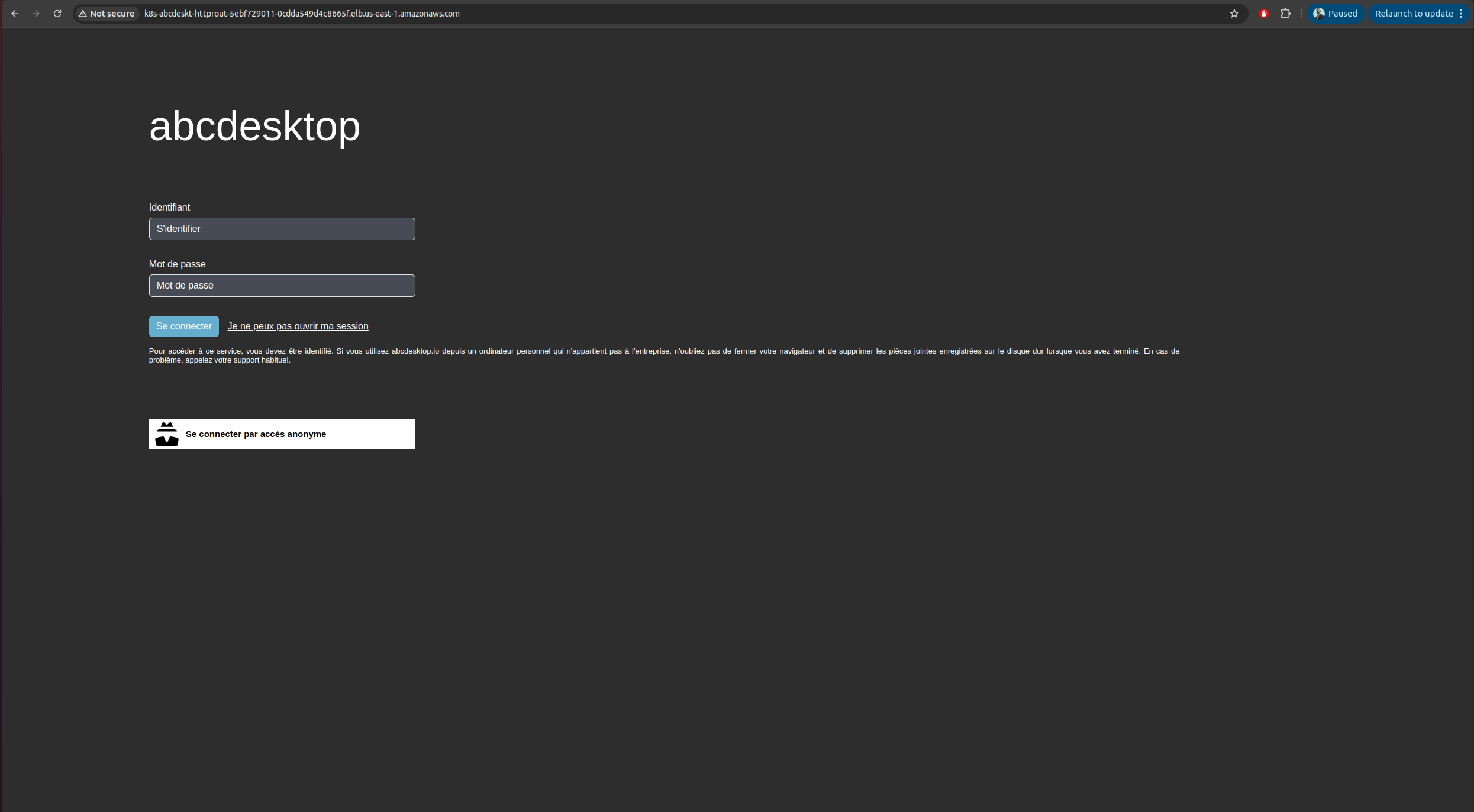
Web browsers do not permit WebSocket connections over an insecure protocol. To log in, you must use the https protocol.
Update your DNS zone file
You will use an FQDN (Fully Qualified Domain Name) to replace the raw IP address.
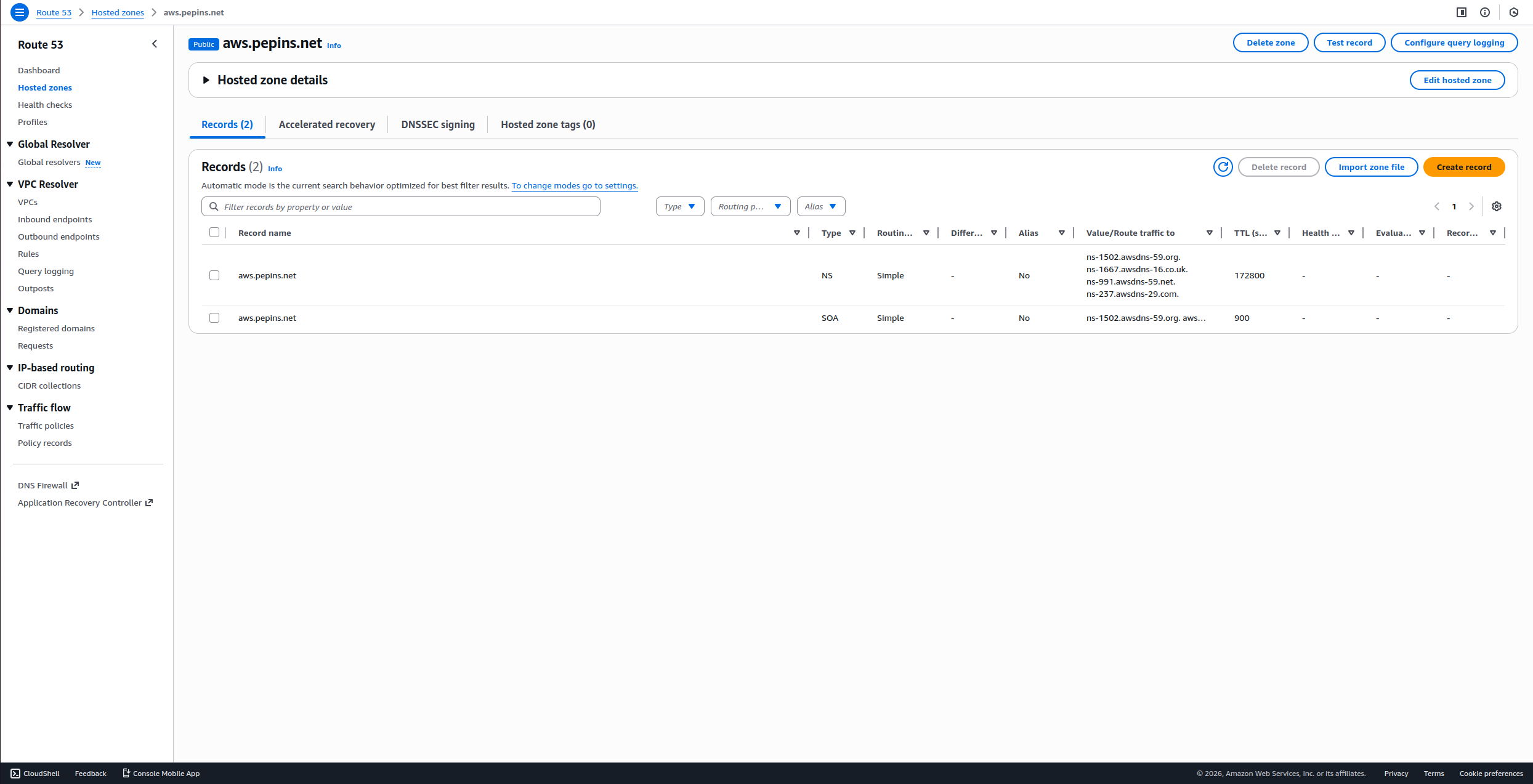
This screenshot shows the AWS network console for Route 53 and displays the Domain configuration. You can also manage your zone file directly through your own domain registrar.
Create new record
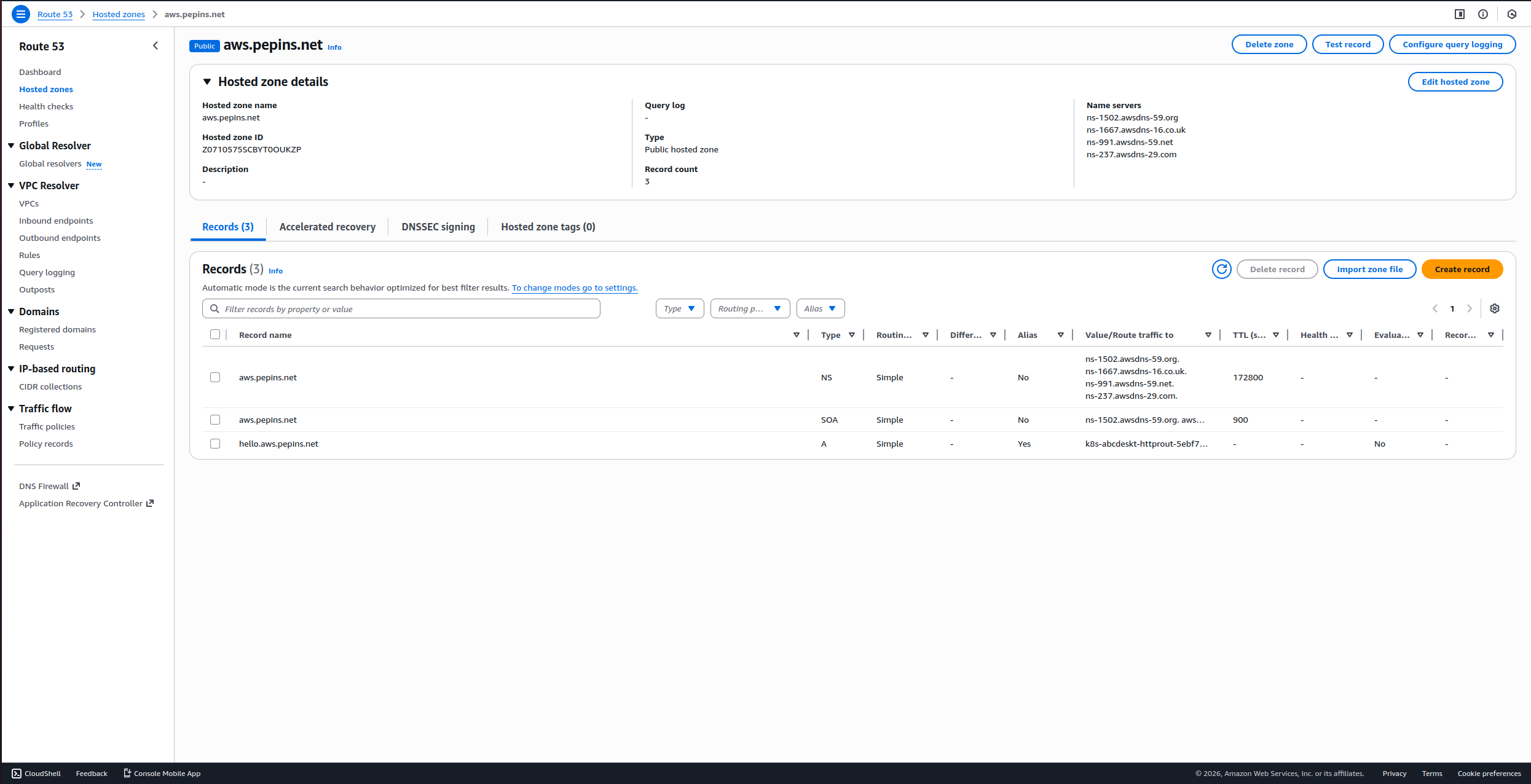
Create a new DNS A record named hello (e.g., hello.aws.pepins.net) aliased to k8s-abcdeskt-httprout-5ebf729011-0cdda549d4c8665f.elb.us-east-1.amazonaws.com.
First, retrieve the hosted zone ID of your load balancer by running the following command:
aws elbv2 describe-load-balancers --region us-east-1 --query 'LoadBalancers[0].CanonicalHostedZoneId'
You should receive output similar to the following:
Z26RNL4JYFTOTI
Paste the following content into a create-record-abcdesktop-aws.json file:
{
  "Comment": "create a new record for abcdesktop on aws",
  "Changes": [
    {
      "Action": "CREATE",
      "ResourceRecordSet": {
        "Name": "hello.aws.pepins.net.",
        "Type": "A",
        "AliasTarget": {
          "HostedZoneId": "<your_hosted_zone_id>",
          "DNSName": "k8s-abcdeskt-httprout-5ebf729011-0cdda549d4c8665f.elb.us-east-1.amazonaws.com",
          "EvaluateTargetHealth": false
        }
      }
    }
  ]
}
Next, retrieve the hosted zone ID of your domain in Route 53. You can obtain it through the Route 53 web console or by running the following command:
aws route53 list-hosted-zones --query 'HostedZones[*].[Name,Id]' --output table
The output will look similar to the following:
--------------------------------------------------------
|                    ListHostedZones                   |
+------------------+-----------------------------------+
|  aws.pepins.net. |  /hostedzone/Z0710575SCBYT0OUKZP  |
+------------------+-----------------------------------+
Finally, run the following command to add the DNS record:
aws route53 change-resource-record-sets --hosted-zone-id <your_domain_hosted_zone_id> --change-batch file://create-record-abcdesktop-aws.json
For example:
aws route53 change-resource-record-sets --hosted-zone-id Z0710575SCBYT0OUKZP --change-batch file://create-record-abcdesktop-aws.json
The output will look similar to the following:
{
    "ChangeInfo": {
        "Id": "/change/C07091422RBO1K64I6QWN",
        "Status": "PENDING",
        "SubmittedAt": "2026-01-14T13:30:30.133000+00:00",
        "Comment": "create a new record for abcdesktop on aws"
    }
}
If you navigate to the Route 53 web console, you will see the newly added record.
From your local device, open a web browser to confirm DNS resolution:
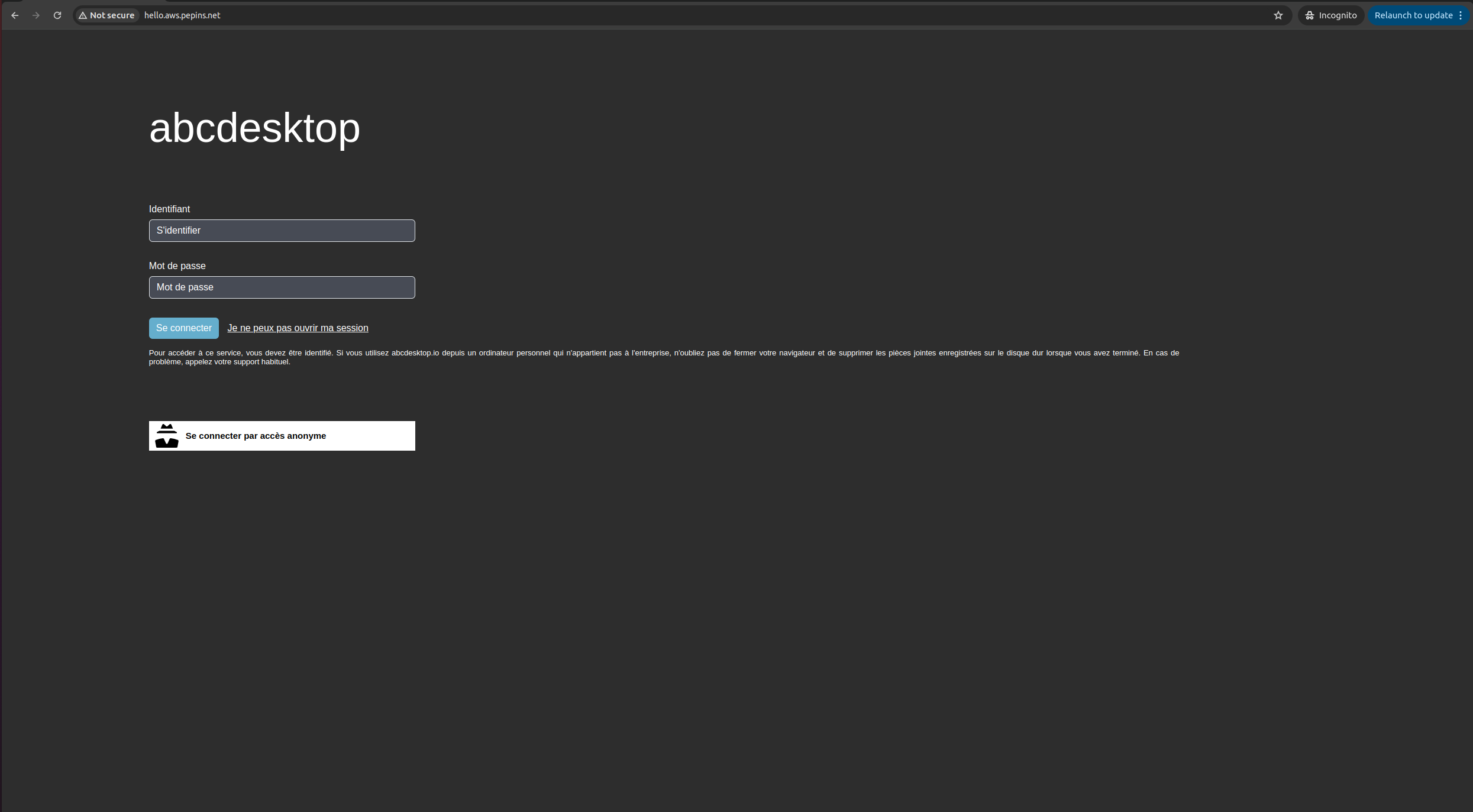
Web browsers do not permit WebSocket connections over an insecure protocol. To log in, you must use the https protocol.
As you can see, the website is marked Not Secured. The next step adds an X.509 SSL certificate to secure the service.
Obtain a Certificate
If you already have an X.509 certificate with private and public key files for your website, you can skip this section.
To create an SSL certificate, this guide uses the Let's Encrypt service. You will need your public hostname and email address.
Define the environment variables ABCDESKTOP_PUBLIC_FQDN and USER_EMAIL_ADDRESS:
ABCDESKTOP_PUBLIC_FQDN=hello.aws.pepins.net
USER_EMAIL_ADDRESS=thisisyouremail@domain.com
ROUTER_POD_NAME=$(kubectl get pods -l run=router-od -o jsonpath={.items..metadata.name}  -n abcdesktop)
kubectl exec -n abcdesktop -it ${ROUTER_POD_NAME} -- /usr/bin/certbot certonly --webroot -w /var/lib/nginx/html -d ${ABCDESKTOP_PUBLIC_FQDN} -m "${USER_EMAIL_ADDRESS}" --agree-tos -n
You should see the following output on stdout:
Saving debug log to /var/log/letsencrypt/letsencrypt.log
Account registered.
Requesting a certificate for hello.aws.pepins.net

Successfully received certificate.
Certificate is saved at: /etc/letsencrypt/live/hello.aws.pepins.net/fullchain.pem
Key is saved at:         /etc/letsencrypt/live/hello.aws.pepins.net/privkey.pem
This certificate expires on 2026-04-13.
These files will be updated when the certificate renews.

NEXT STEPS:
- The certificate will need to be renewed before it expires. Certbot can automatically renew the certificate in the background, but you may need to take steps to enable that functionality. See https://certbot.org/renewal-setup for instructions.

- - - - - - - - - - - - - - - - - - - - - - - - - - - - - - - - - - - - - - - -
If you like Certbot, please consider supporting our work by:
 * Donating to ISRG / Let's Encrypt:   https://letsencrypt.org/donate
 * Donating to EFF:                    https://eff.org/donate-le
- - - - - - - - - - - - - - - - - - - - - - - - - - - - - - - - - - - - - - - -
The fullchain.pem and privkey.pem files are stored inside the container at the following paths:
Certificate is saved at: /etc/letsencrypt/live/hello.aws.pepins.net/fullchain.pem
Key is saved at:         /etc/letsencrypt/live/hello.aws.pepins.net/privkey.pem
Export the certificate files and create a new Kubernetes secret:
kubectl exec -n abcdesktop -it  ${ROUTER_POD_NAME} -- cat /etc/letsencrypt/live/$ABCDESKTOP_PUBLIC_FQDN/fullchain.pem > fullchain.pem
kubectl exec -n abcdesktop -it  ${ROUTER_POD_NAME} -- cat /etc/letsencrypt/live/$ABCDESKTOP_PUBLIC_FQDN/privkey.pem > privkey.pem
Create a Secret for the X.509 Certificate
Create a Kubernetes secret named http-router-certificat using the fullchain.pem and privkey.pem file contents:
kubectl create secret tls http-router-certificat --cert=fullchain.pem --key=privkey.pem -n abcdesktop
The secret is created successfully:
secret/http-router-certificat created
Update http-router ConfigMap to use the new http-router-certificat secret
Download abcdesktop-routehttp-config.4.4.yaml file
wget https://raw.githubusercontent.com/abcdesktopio/conf/refs/heads/main/kubernetes/abcdesktop-routehttp-config.4.4.yaml
Open your abcdesktop-routehttp-config.4.4.yaml file and locate the ConfigMap abcdesktop-routehttp-config.
Uncomment the HTTPS directives and replace YOUR_SERVER_NAME_AND_DOMAIN with your actual domain name.
 # nginx server config
 server {
     ...

     ######
     # uncomment this to enable https
     #
     listen 443 ssl http2 default_server;
     listen [::]:443 ssl http2 default_server;
     server_name YOUR_SERVER_NAME_AND_DOMAIN; # change this too
     ssl_certificate     /etc/nginx/ssl/tls.crt;
     ssl_certificate_key /etc/nginx/ssl/tls.key;
     #
     # end of https section
     ######

     ...
     index index.html index.htm;
For example
     listen 443 ssl http2 default_server;
     listen [::]:443 ssl http2 default_server;
     server_name hello.aws.pepins.net;
     ssl_certificate     /etc/nginx/ssl/tls.crt;
     ssl_certificate_key /etc/nginx/ssl/tls.key;
Apply the updated NGINX configuration file:
kubectl apply -f abcdesktop-routehttp-config.4.4.yaml -n abcdesktop
Update deployment http-router
Update the deployment route to mount the SSL certificate.
The abcdesktop-deployment-routehttps.4.4.yaml file adds mountPath: /etc/nginx/ssl mapped to secretName: http-router-certificat:
kubectl apply -f https://raw.githubusercontent.com/abcdesktopio/conf/refs/heads/main/kubernetes/abcdesktop-deployment-routehttps.4.4.yaml -n abcdesktop
Reach your website using https protocol
You can now connect to your public abcdesktop website using https protocol.
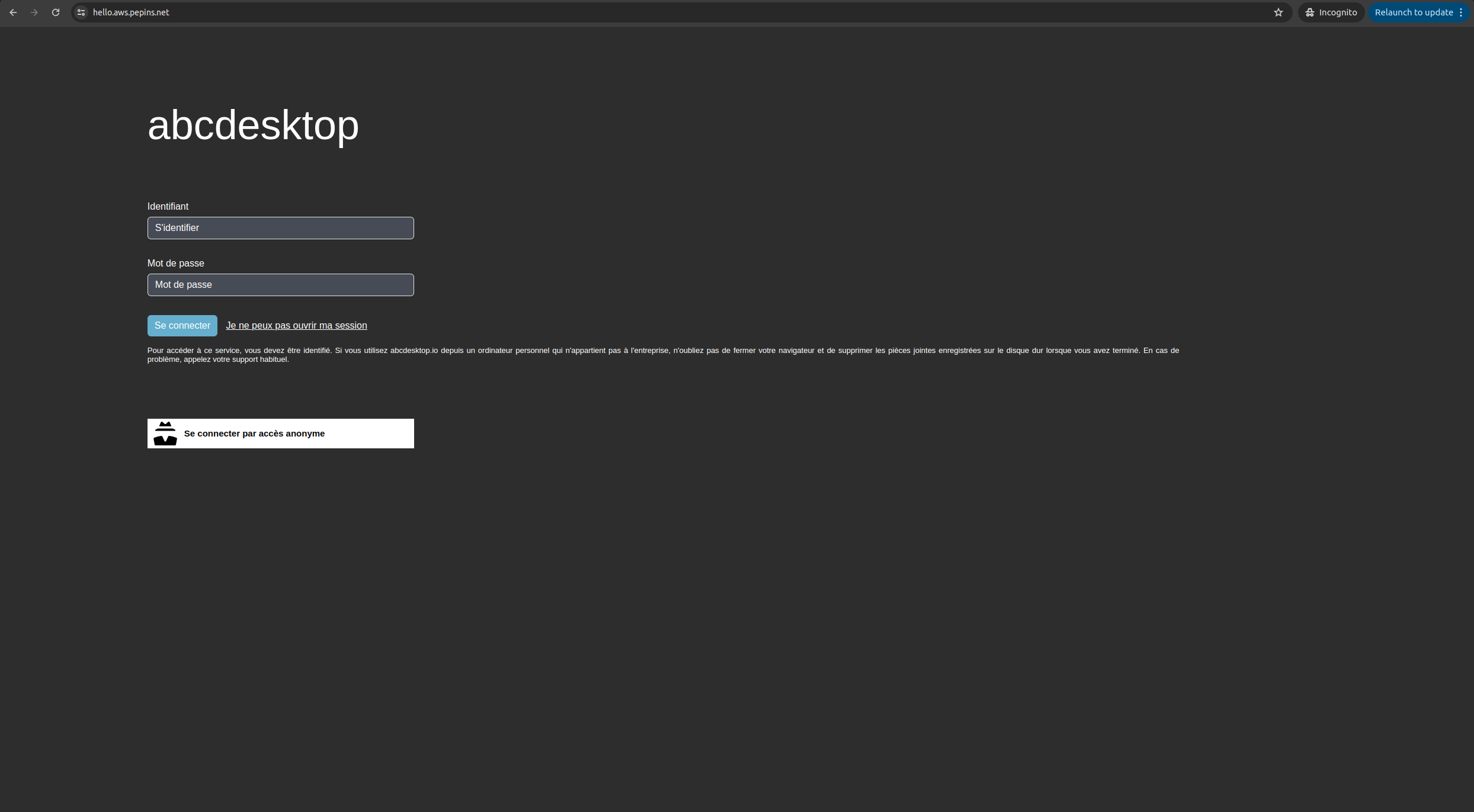
The connection is secured, and the certificate information is visible in the browser.