Installation
Requirements
- Kubernetes cluster in
READYstate kubectlorminikubecommand-line tool configured to communicate with your clusteropensslandcurlcommand-line tools installed (required only when installing via kubectl)
You can run the Quick installation process or perform the Manual installation step by step.
A Linux operating system is recommended to run abcdesktop.io.
Step 1: Create abcdesktop namespace
Create the abcdesktop namespace:
kubectl create namespace abcdesktop
You should read on the standard output
namespace/abcdesktop created
Step 2: Secure abcdesktop JWT exchange
The user JWT is signed, so a (private, public) RSA key pair is required for signing. The desktop JWT is both encrypted and signed, so a (private, public) RSA key pair is required for signing and a separate (private, public) RSA key pair is required to encrypt data.
- The JWT payload is encrypted with the abcdesktop jwt desktop payload private key by pyos.
- The JWT payload is decrypted with the abcdesktop jwt desktop payload public key by nginx.
Use the payload private key as the encryption private key, and keep the payload public key private as well. Do not distribute this public key — it must remain private. This is a deliberate security design choice.
- The JSON Web Token payload is signed with the abcdesktop jwt desktop signing private key.
-
The JSON Web Token payload is verified with the abcdesktop jwt desktop signing public key.
-
The JSON Web Token user token is signed with the abcdesktop jwt user signing private key by pyos.
- The JSON Web Token user token is verified with the abcdesktop jwt user signing public key by pyos.
Since multiple pods of pyos can run simultaneously, the same private and public key values are stored in a Kubernetes secret.
The abcdesktop jwt desktop payload public key is read by the nginx lua script. Exporting the public key requires the RSAPublicKey_out option to use the RSAPublicKey format. The RSAPublicKey format ensures key file compatibility between the python 3.x jwt module and the lua jwt lib.
The following commands generate all necessary cryptographic key pairs:
# Desktop payload keys (encrypt/decrypt)
openssl genrsa -out abcdesktop_jwt_desktop_payload_private_key.pem 1024
openssl rsa -in abcdesktop_jwt_desktop_payload_private_key.pem \
    -outform PEM -pubout -out  _abcdesktop_jwt_desktop_payload_public_key.pem
openssl rsa -pubin -in _abcdesktop_jwt_desktop_payload_public_key.pem \
    -RSAPublicKey_out -out abcdesktop_jwt_desktop_payload_public_key.pem

# Desktop signing keys
openssl genrsa -out abcdesktop_jwt_desktop_signing_private_key.pem 1024
openssl rsa -in abcdesktop_jwt_desktop_signing_private_key.pem \
    -outform PEM -pubout -out abcdesktop_jwt_desktop_signing_public_key.pem

# User signing keys
openssl genrsa -out abcdesktop_jwt_user_signing_private_key.pem 1024
openssl rsa -in abcdesktop_jwt_user_signing_private_key.pem \
    -outform PEM -pubout -out abcdesktop_jwt_user_signing_public_key.pem
Then, create the Kubernetes secrets from the generated key files:
kubectl create secret generic abcdesktopjwtdesktoppayload \
    --from-file=abcdesktop_jwt_desktop_payload_private_key.pem \
    --from-file=abcdesktop_jwt_desktop_payload_public_key.pem \
    --namespace=abcdesktop

kubectl create secret generic abcdesktopjwtdesktopsigning \
    --from-file=abcdesktop_jwt_desktop_signing_private_key.pem \
    --from-file=abcdesktop_jwt_desktop_signing_public_key.pem \
    --namespace=abcdesktop

kubectl create secret generic abcdesktopjwtusersigning \
    --from-file=abcdesktop_jwt_user_signing_private_key.pem \
    --from-file=abcdesktop_jwt_user_signing_public_key.pem \
    --namespace=abcdesktop
The following output should appear on the standard output:
secret/abcdesktopjwtdesktoppayload created
secret/abcdesktopjwtdesktopsigning created
secret/abcdesktopjwtusersigning created
Verify that all secrets were created successfully:
kubectl get secrets -n abcdesktop
The following output should appear on the standard output:
NAME                          TYPE                                  DATA   AGE
abcdesktopjwtdesktoppayload   Opaque                                2      68s
abcdesktopjwtdesktopsigning   Opaque                                2      68s
abcdesktopjwtusersigning      Opaque                                2      67s
Step 3: Download and create the abcdesktop config file
Download the od.config file. This is the main configuration file for the pyos control plane service.
curl https://raw.githubusercontent.com/abcdesktopio/conf/main/reference/od.config.{{ version }} --output od.config
Create the ConfigMap abcdesktop-config in the abcdesktop namespace:
kubectl create configmap abcdesktop-config --from-file=od.config -n abcdesktop
The following output should appear on stdout:
configmap/abcdesktop-config created
Step 4: Create the abcdesktop pods and services
The abcdesktop.yaml file contains declarations for all roles, service accounts, pods, and services required by abcdesktop. Apply it to the abcdesktop namespace with the following command:
kubectl create -n abcdesktop -f https://raw.githubusercontent.com/abcdesktopio/conf/main/kubernetes/abcdesktop-{{ version }}.yaml
The following output should appear on the standard output:
role.rbac.authorization.k8s.io/pyos-role created
rolebinding.rbac.authorization.k8s.io/pyos-rbac created
serviceaccount/pyos-serviceaccount created
configmap/configmap-mongodb-scripts created
secret/secret-mongodb created
deployment.apps/mongodb-od created
deployment.apps/memcached-od created
deployment.apps/router-od created
deployment.apps/nginx-od created
deployment.apps/speedtest-od created
deployment.apps/pyos-od created
deployment.apps/console-od created
deployment.apps/openldap-od created
endpoints/desktop created
service/desktop created
service/memcached created
service/mongodb created
service/speedtest created
service/pyos created
service/console created
service/http-router created
service/website created
service/openldap created
Once the pods are created, all pods should reach Running status.
On the first installation, wait for all container images to finish downloading — this may take several minutes.
kubectl get pods -n abcdesktop
The following output should appear on the standard output:
NAME                            READY   STATUS    RESTARTS   AGE
console-od-79bf9bf475-cqtj5     1/1     Running   0          2m18s
memcached-od-d4b6b6867-djzr6    1/1     Running   0          2m19s
mongodb-od-5d996fd57b-gn4hv     1/1     Running   0          2m19s
nginx-od-796c7d7d6b-rk2d5       1/1     Running   0          2m19s
openldap-od-567dcf7bf6-krhpw    1/1     Running   0          2m18s
pyos-od-65bdd9d479-5228d        1/1     Running   0          2m18s
router-od-7b6dff8dd4-pn587      1/1     Running   0          2m19s
speedtest-od-7fcc9649b4-n2ldl   1/1     Running   0          2m18s
Step 5: Connect to your local abcdesktop instance
Open your browser and navigate to http://[your-ip-hostname]:30443/
The abcdesktop home page should be accessible:
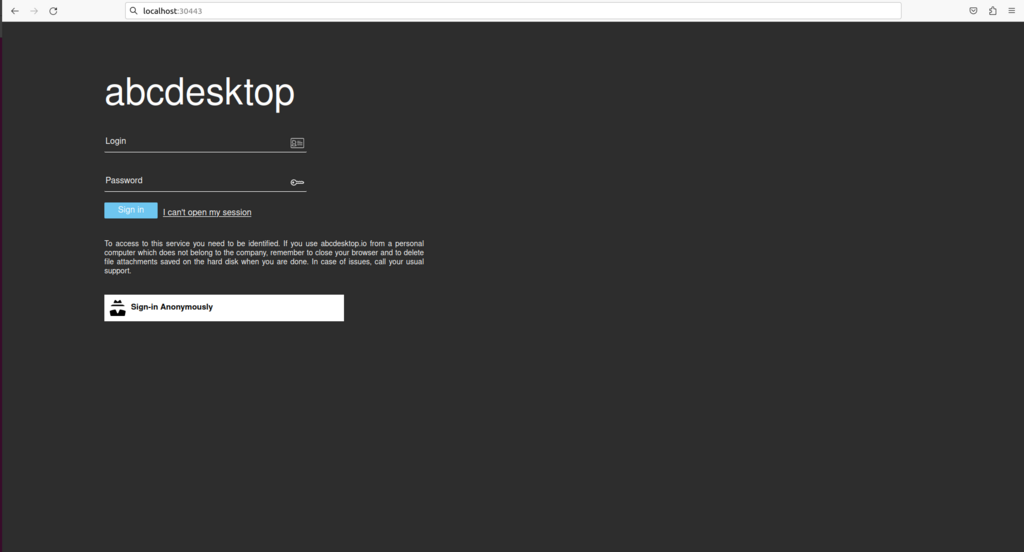
Click the Connect with Anonymous access button. The abcdesktop pyos service creates a new user pod in the background.
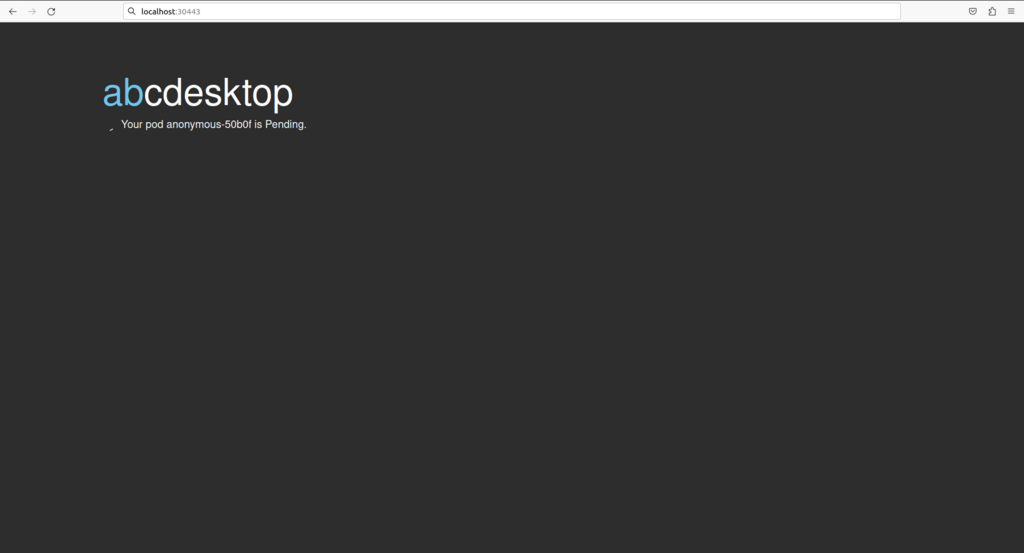
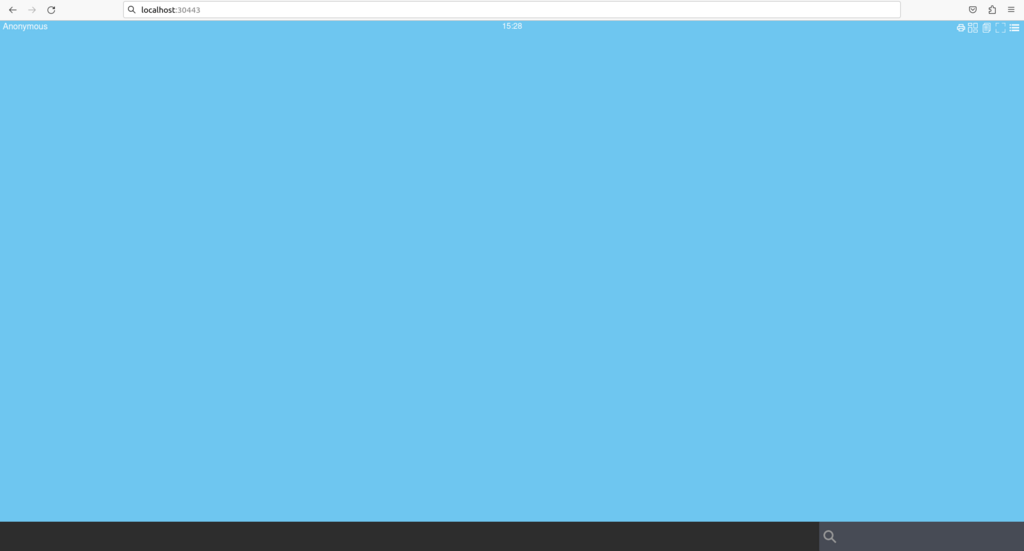
After a few seconds, all processes will be ready. The abcdesktop main screen appears with no applications in the dock.
You can also verify that the user pod was created by running the following command:
kubectl get pods -l type=x11server -n abcdesktop
The anonymous-XXXXX pod should be present with a Running status:
NAME              READY   STATUS    RESTARTS   AGE
anonymous-c44fc   5/5     Running   0          116s
abcdesktop.io has been successfully installed. You only need a web browser to access your web workspace. You can now proceed to add container applications. Read the next chapter to learn how to add applications.